
Install on WordPress
Add your botts.ai chat widget to a WordPress site with the free WPCode plugin, in six steps and without editing theme files.
This guide adds the chat widget of a botts.ai website deployment to a WordPress site. It uses the free plugin WPCode, which prints the widget's script on every page and keeps it there when you switch or update your theme.
Before you start
You need:
- Administrator access to your WordPress site. Installing plugins requires it.
- A site that allows plugins. Self-hosted WordPress always does; on WordPress.com, every paid plan does, the free plan does not.
- The embed code of your website deployment. In botts.ai, open Agents, pick your agent, go to the Deploy tab and open the Website deployment. The Install section at the bottom of the editor shows the code with a copy button. No website deployment yet? See Deployments.
The embed code looks like this, with your deployment's own key in place of YOUR_API_KEY:
<script async src="https://api.botts.ai/widget/chat-widget.js?key=YOUR_API_KEY"></script>
Note
The website widget needs the Business plan or higher. The Personal plan includes the internal chat only.
Step 1: Sign in to WordPress
Open your-domain.com/wp-admin and sign in. Replace your-domain.com with your site's address.
Step 2: Install and activate WPCode
Go to Plugins → Add Plugin and search for WPCode. Pick WPCode – Insert Headers and Footers + Custom Code Snippets, not the Search & Replace plugin from the same vendor next to it. Click Install Now, then Activate.
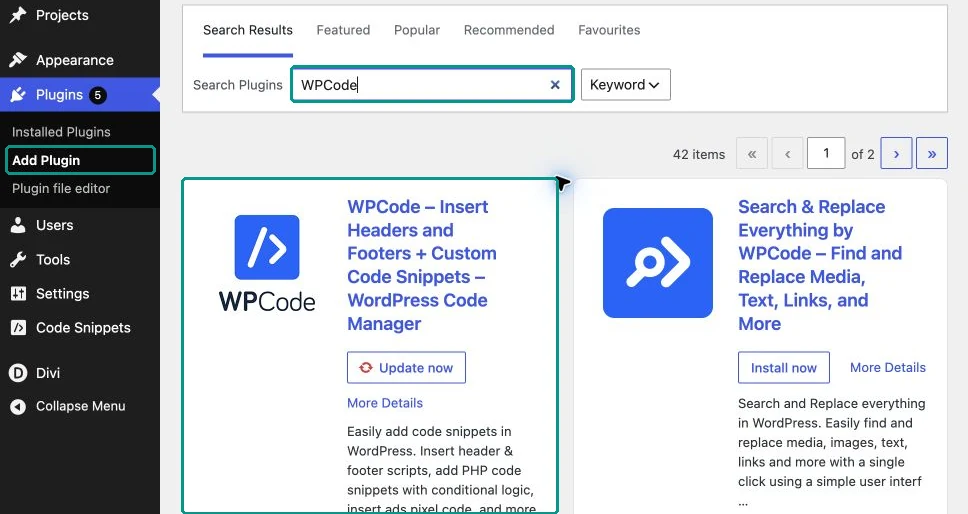
In the screenshot WPCode is already installed and has an update waiting, so its button reads Update now. On a fresh install it reads Install Now.
On WordPress.com the screen can look different: click Plugins in the left menu, search for WPCode, open the plugin and click Install and activate.
Step 3: Open Header & Footer
In the left menu, go to Code Snippets → Header & Footer. The page is called Global Header and Footer and has three fields: Header, Body and Footer.
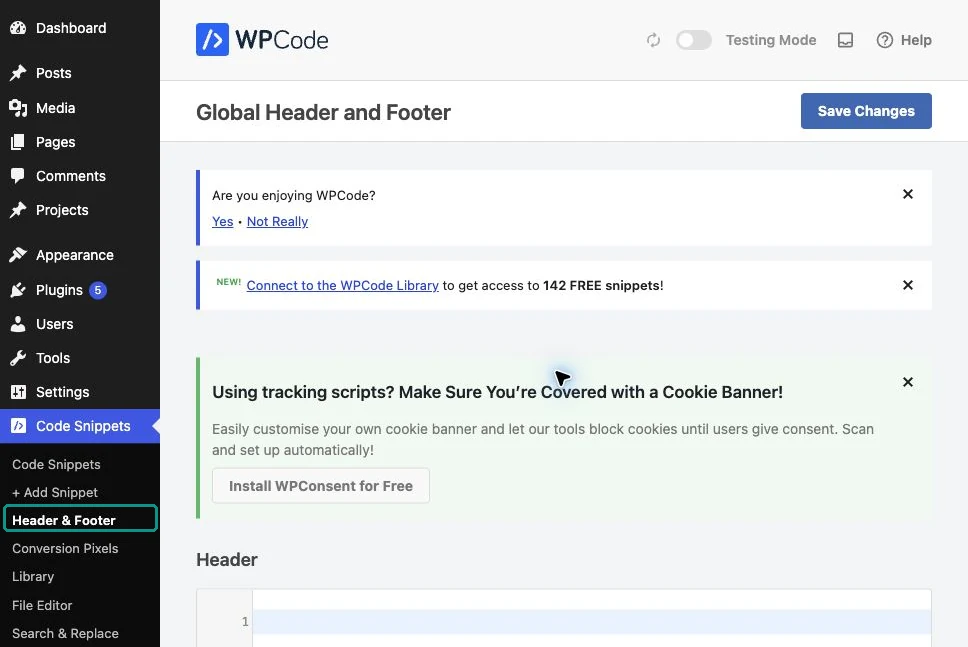
No Code Snippets menu? Then WPCode runs in its simplified Headers & Footers mode: open Settings → Header & Footer instead.
Step 4: Paste the code into the Footer field
Scroll down to the Footer field and paste your embed code. If the field already holds code, put the botts.ai code on a new line below it and leave the rest as it is. Paste the code exactly as copied: the address and the key must not change.
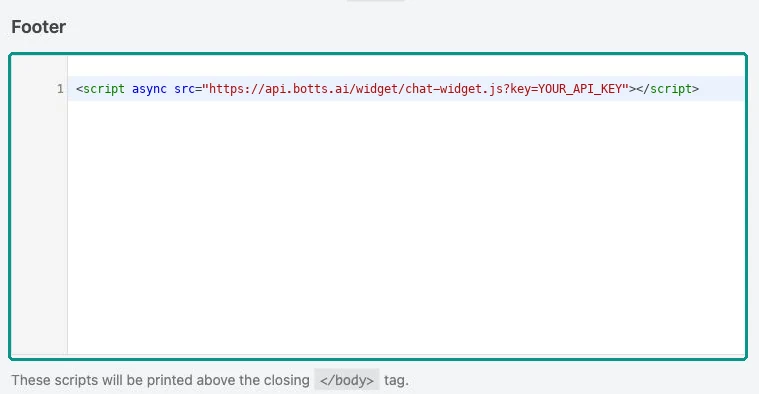
WPCode prints the Footer field just before the closing </body> tag, which is where the widget script belongs.
Step 5: Save your changes
Scroll back up and click Save Changes in the top right. This puts the code on your site. WPCode must stay active: if you deactivate the plugin, the widget disappears too.

Step 6: Check the widget on your site
Open your public site in a private window, reload the page and wait a moment. The chat launcher appears in the bottom-right corner, or wherever you placed it in the widget editor. Open it and send a test question. Check a subpage and your phone as well.
Tip
It worked if the widget shows on your public site, opens, and answers your test question.
If the widget doesn't appear
- Check that the complete code is in the Footer field and that you saved.
- Check that WPCode is active under Plugins → Installed Plugins.
- Clear your caches. A caching plugin or your host's cache can keep serving the page without the widget. Performance plugins that delay or combine JavaScript can hold the widget back too; exclude
chat-widget.jsfrom those options. - Test in a private window without an ad blocker. If your cookie banner or consent tool blocks scripts, check its configuration.
- Check that the key belongs to the right deployment and that the deployment is switched on in the Deploy tab.
Change or remove the widget
Colors, texts, the launcher and every other widget setting are changed in the botts.ai editor. Your site picks them up without any change in WordPress. The code only needs replacing if the deployment's key changes.
To remove the widget, delete only the botts.ai script line from the Footer field and save again.
Note
The screenshots show WordPress in English. Menu and button names can differ with your WordPress language and version.
More help
- WPCode docs: Using the Global Header & Footer settings
- WordPress.com Support: Install a plugin
Other platforms
Guides for other platforms: Wix, Squarespace, Shopify, Webflow, Jimdo, TYPO3 and Google Tag Manager. The embed code works on any site that lets you add code before the closing </body> tag; see Embed code. If someone else looks after your website, send the code to your web agency.
Last updated on October 4, 2026