
Conversations
Review what your agents say across every channel, oversee internal AI chats with privacy controls, flag and close conversations, read end-user feedback, and use the dashboard Chat to talk to your own agents.
Every interaction with your agents is logged as a conversation — a web chat, a phone call, a WhatsApp thread, a form-driven exchange, or a member chatting with the AI inside the dashboard. botts.ai gives you two related but distinct surfaces for working with them, plus a built-in Chat for talking to your agents yourself.
| Surface | Where | Who can open it |
|---|---|---|
| Conversations hub | Conversations group (under ANALYTICS) in the left sidebar | Builder, Admin, Owner |
| Per-agent Chats / Leads | An agent's Chats and Leads pages | Builder, Admin, Owner |
| Dashboard Chat | Chat at the top of the left sidebar | Every role (Member, Builder, Admin, Owner) |
Members see only the dashboard Chat. The analytics surfaces are for Builders and above.
Channels
Conversations come from many channels. Each is shown with a colored badge:
| Channel | Badge label | What it is |
|---|---|---|
| Phone / voice / realtime | Voice | A spoken phone call handled by a voice agent |
| Website / web widget | Website | The embeddable chat widget on your site |
| A WhatsApp conversation | ||
| Telegram | Telegram | A Telegram conversation |
| An email-driven exchange | ||
| API | API | A conversation started through the API |
| Internal | Internal | A member chatting with the AI inside the dashboard |
Internal chats are a first-class channel with their own privacy and oversight rules — see Internal-chat privacy and oversight.
Why review conversations?
Regularly reviewing conversations is one of the most impactful things you can do to improve your agents:
- Catch errors early — Spot incorrect or incomplete answers before they become patterns.
- Improve your Knowledge Base — If the agent can't answer a question, it usually means the Knowledge Base is missing that information.
- Refine your System Prompt — See whether the agent follows your instructions or drifts off-script.
- Understand your customers — Learn what questions people actually ask, which may differ from what you expected.
The Conversations hub
Open Conversations under the ANALYTICS group in the left sidebar. The hub is a two-pane view: a list of recent conversations on the left and a transcript on the right.
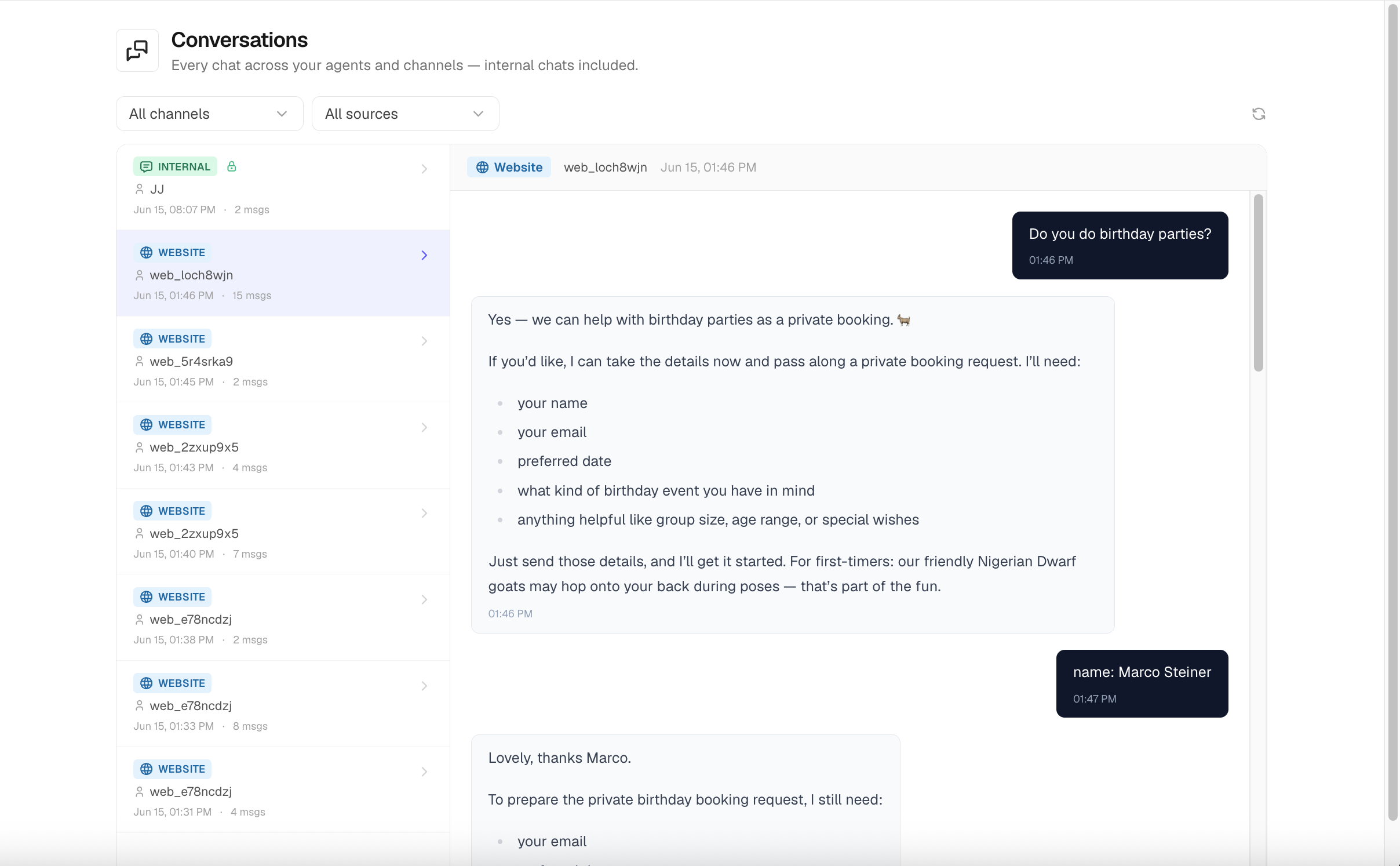
The hub loads the most recent 100 conversations across all channels, ordered newest first. Each row shows:
- A channel badge (Voice, Website, WhatsApp, Telegram, Internal, Email, API, or Chat).
- A caller label — the end user's phone number, or for internal chats the owning member's name or email, otherwise the channel identifier.
- The start time and a message count ("N msgs").
- A flag icon when the conversation has been flagged.
- A rec marker when a voice recording is attached. (The recording itself plays back in the per-agent Chats view, not in the hub.)
- For internal chats, an admin-visibility icon: an emerald lock for private, an amber eye for full. See Internal-chat privacy and oversight.
Click any row to load its transcript in the right pane.
Filtering
The hub has two filters, both applied to the conversations already loaded:
- Channel — Website and the web widget collapse into a single "Website" option; the available options are built from the conversations on screen.
- Source — the deployment the conversation came from.
There is no date-range or end-user search in the hub. To dig into a single agent's history, open that agent's Chats page.
Exporting conversations
Export downloads your conversations as a file, from the hub (every agent) or from a single agent's Contacts → Chats view (that agent only). It walks the full history, not just the hundred rows on screen.
Five formats are offered, in two shapes:
| Format | Shape |
|---|---|
| JSON | The full structure, including message-level detail |
| CSV / Excel (.xlsx) | One row per message |
| CSV (per conversation) / Excel (per conversation) | One row per conversation, with the whole thread in a single transcript cell |
For a very long conversation, prefer CSV or a per-message format: Excel caps a single cell at 32,767 characters, so the per-conversation .xlsx silently loses the tail of a transcript longer than that.
Every row carries the conversation's metadata: id, channel, source deployment, channel id, phone, language, status, start and end time, message count, flag, negative-feedback count, and owner. Message rows add the timestamp, role, content, and any feedback the customer left with its comment.
Transcripts contain only the live customer and agent turns. Tool-call plumbing and superseded versions of edited messages are left out, because they would drown the readable conversation.
Note
Export respects internal-chat privacy. An internal chat whose content you are not allowed to read (see Internal-chat privacy and oversight) exports as a metadata-only row, never with its messages.
Reading a transcript
The transcript shows every message exchanged. For each message you may see:
- The role (the customer/member and the agent).
- Tool-use cards when the agent called a tool — the tool name, its arguments, and its result.
- End-user feedback — a thumbs-up or thumbs-down a customer left on an agent reply, with an optional comment.
Internal chats are not shown in the hub transcript through the analytics path — their content is governed separately (see below).
Flagging and closing
Conversations carry two review states:
- Flagged — a marker (amber flag) you set to revisit a conversation later. Toggle it from an agent's Contacts → Chats view. The hub displays the flag but does not toggle it.
- Status — active or closed. Closing a conversation stamps its end time. When the conversation belongs to an agent, closing it also kicks off a background memory-extraction task, so the agent can carry useful facts forward into future conversations.
Per-agent Contacts and Forms
Open an agent and use its Chats and Leads pages (under Insights in the agent navigation) to work with that agent's data in detail.
Contacts → Chats
The Chats page has two sub-views, toggled at the top: Chats (the default) and People.
The Chats sub-view lists that agent's conversations and adds controls the hub doesn't have:
- A flag toggle.
- A status pill (active / closed).
- A negative-feedback count — a red thumbs-down with the number of replies a customer rated negatively.
- A recording player for voice calls (see Voice recordings).
- The full transcript, including tool-use cards and per-message feedback.
The People sub-view lists the contacts (end users) this agent has interacted with.
Voice recordings
When a voice call has a recording, a player appears above the transcript in Contacts → Chats, streaming the call audio. In the hub, voice rows show only a rec marker — the player itself lives in the per-agent view.
Privacy
Recording is opt-in and must comply with your local regulations. Make sure callers are informed when calls are recorded.
Forms
The Leads page lists form submissions captured by the agent. It is available to Builder, Admin, and Owner.
- The table is paginated and shows, per submission: the date, the form name, the visitor's name or email (or "Unknown Visitor"), and the first three captured fields (with a "+N more" indicator).
- A search filters by form name.
- Export CSV downloads every submission, with one column per captured field.
- The trash button deletes a submission (after a confirmation). Deleting requires the manage level of forms access.
The dashboard Chat
Chat sits at the top of the left sidebar and is available to every role. It is where you talk to the AI yourself — either with a general-purpose model or with one of your deployed agents. It has two modes.
| Mode | What it does | Tools & Knowledge |
|---|---|---|
| Agent (default) | Chat with one of your deployed agents | Full agent tools and knowledge bases |
| Regular | Chat with a general-purpose model | None — plain conversation, no agent context |
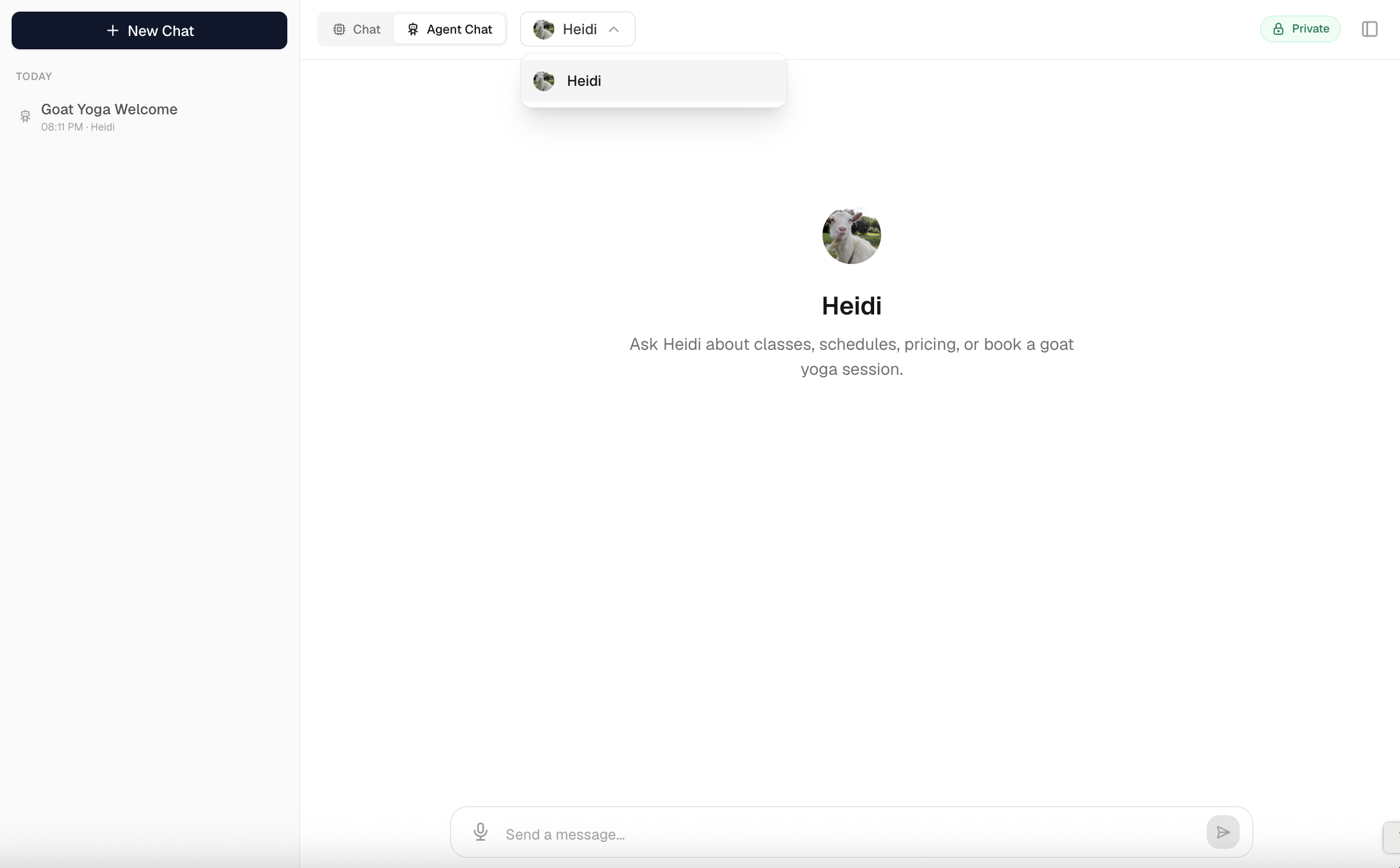
Agent mode
Agent mode lists agents that have an active internal-chat deployment and that you're allowed to use. Access follows the deployment's setting: open to the whole organization, restricted by minimum role, or invite-only. Each agent shows its title, welcome message, and logo.
A deployed agent runs on the model chosen at deploy time — you can't switch a deployed agent to a different model from the chat. If the primary model fails mid-request, the agent automatically falls back to its configured backup model; the reply records the model that actually answered. (When you chat with an agent you're still building and haven't deployed, it runs as a builder test chat where you can pick the model.)
Regular mode
Regular mode gives you a model picker showing the models your organization is allowed to use, ordered with recommended models first. Each option shows its name, a recommended star, intelligence and speed (each as an "N/5" rating), and hosting country. Text usage is billed in credits.
You can change the model in the middle of a conversation: the picker stays available once a chat has started, and the model shown when you press send is the one that answers. The thread carries on — nothing is lost — and a "Switched to …" line marks where the change took effect. Each reply is recorded with the model that wrote it, so a mixed conversation stays honest about who said what. (Switching between Regular and Agent mode still needs a new chat; an agent's model comes from its deployment.)
What the chat remembers about you
The chat builds a private memory of you from your own regular chats — your role, the projects you name, how you like answers — and every model you talk to uses it, so you don't have to repeat yourself after switching. It is on by default and entirely yours: Settings → Chat memory lists what has been learned, deletes any single item, or forgets everything, and a switch there turns it off (what is stored stays until you delete it). Memory is per workspace, is never shown in the admin conversation views, and is built only from your own chats — not from agent chats, and not from scheduled-task threads.
Model availability is enforced by your organization's data-residency setting: only compliant models appear, and picking a non-compliant one is rejected. If your organization has disabled chat, regular mode is turned off and the model picker is empty.
The regular-mode assistant identifies itself as the built-in assistant of botts.ai (a Swiss agent platform), writes Swiss High German spelling (always "ss", never "ß"), and has no access to your files, emails, or anyone else's conversations — only the current session.
Web search. Regular mode can search the live web for current or general information beyond what the model already knows, and open the most relevant result to read it in full — citing its sources and flagging figures that may be out of date. It's billed in credits like everything else here: per search, plus a per-page charge when it opens a page in full. (This is the same web-search capability agents can use.)
Working in a chat
- Stop generating — while a reply streams, the send button becomes a red stop button; pressing it ends the response cleanly and keeps the text generated so far.
- Queue a follow-up — you don't have to wait for the reply to finish. Send another message and it is queued visibly beneath the composer; the queued messages are answered together in one coherent reply once the current answer completes. A queued message can be removed before it is sent.
- Voice dictation — the microphone button records you and transcribes the audio into the input box (it is dictation into the text field, not a spoken conversation). Audio is capped at 25 MB.
- Edit and branch — you can edit one of your own messages; this creates a new branch and re-runs the agent's reply. Arrows let you move between branches when a message has more than one version. Attachments on the message you edit are kept.
- Titles — after your first exchange, a short title is generated automatically. You can rename it.
- Copy — copy a reply or an individual code block. Pasting into Word or Google Docs gives clean formatting rather than the page's own styling.
Organizing your chats
The conversation sidebar groups your chats by age (Today, Previous 7 Days, Older) and gives you a few ways to keep the list manageable:
- Search across your conversations, and filter the list.
- Pin to top — pinned chats sit in their own group above the rest. You can also drag a chat onto the pinned area.
- Mark as unread — flag a chat to come back to. Results delivered by a scheduled task arrive marked unread the same way.
- Rename and delete from the chat's options menu.
Attaching documents
You can attach documents to a chat and ask the agent about them. Click the attach button, or drag files onto the composer.
| File types | PDF, DOCX, TXT, Markdown, HTML, JSON, CSV, Excel (XLSX) |
| Size | Up to 25 MB per file |
| Where it's allowed | Regular chat, and agent chats whose deployment has File upload switched on |
Small documents are read in full and placed directly into the agent's context. Larger ones are indexed instead, and the agent searches them the same way it searches a knowledge base, so a long PDF stays usable without flooding the conversation. Either way the agent tells you which file an answer came from.
Pasting a very long block of text turns it into a text snippet attachment rather than an oversized message, which you can open and edit. Whether a snippet is inlined or indexed is decided by its size, like any other attachment; an indexed one is labelled Knowledge base on its chip.
Uploads count towards your organization's upload storage limit and cost credits to index, exactly like knowledge-base content. Attaching the same content twice to one conversation reuses the stored copy rather than paying to index it again.
Retention is an organization-wide setting, not a per-file choice: My Organization → General → Document Retention, from one week to forever. It applies to new uploads; documents already uploaded keep the expiry they were given. See Team & Billing.
Note
The file types here are deliberately wider than the knowledge base's, which accepts PDF, DOC, DOCX, TXT, and Markdown. A chat attachment is a one-off you are asking about; a knowledge-base source is content your agents answer from permanently.
Attaching images
Screenshots and photos can be attached the same way, or pasted straight into the composer. Models that understand images carry an Images badge in the model picker; with any other model the attachment is refused before it is sent, and a notice offers a switch to a model that can see it.
| Formats | PNG, JPEG, WebP, GIF (first frame) |
| Size | Up to 10 MB per image, 10 images per message, 25 per conversation |
| Where it's allowed | Regular chat, and agent chats whose deployment has File upload switched on and whose model carries the Images badge |
Images are stored downscaled to 1568 pixels on the long edge with camera metadata removed, which keeps text in a screenshot readable while bounding what each turn costs. The model sees the images on the last three messages directly; older images stay listed for it, and it can look at one again when the conversation refers to it (shown as Looking at an image while it does).
Image input is billed as input text at the model's rate, roughly 1,000 to 2,000 tokens per screenshot on every turn where the image is shown. Retention follows the organization's Document Retention setting, like other attachments.
Spreadsheets and charts
CSV and Excel files are analysed rather than read: the assistant runs code in an isolated sandbox against the file and answers with figures, tables and interactive charts. Files it produces (CSV, Excel, JSON or text) are offered for download; it does not produce images. Each analysis run costs credits like any other tool call.
Long conversations
A conversation that runs long is compacted rather than truncated: instead of replaying every message, the agent works from a running summary of the earlier part plus the recent messages in full. This keeps a long chat inside the model's context window and keeps its cost from climbing with every turn, while preserving what was established earlier.
You don't configure this and it happens automatically. If a single message is itself too long for the model, the chat tells you so and suggests starting a new conversation or shortening the message.
When something goes wrong
The chat reports provider problems in plain language rather than failing silently:
| Message | What it means |
|---|---|
| The AI service is busy right now | The provider is rate-limiting. Wait a moment and resend. |
| The provider's safety filter blocked this request | Rephrase and try again. |
| This conversation is too long for the selected model | Start a new conversation, or shorten your message. |
| Connection lost | The reply may have finished anyway. A Reload button re-checks. |
Endless chat
If your organization has endless chat turned on, the experience changes: new messages continue your existing conversation instead of starting a fresh one. Regular chat is a single ongoing thread — changing the model in the picker moves that thread onto the new model rather than opening a separate one — and agent chat keeps one thread per agent. The conversation list starts closed (open it from the icon in the header to reach earlier chats), and conversations can't be deleted.
Credits
The chat checks your credit balance before sending. If your balance has run out, the send is refused and you'll see an "insufficient credits" notice. Usage is billed in credits.
Internal-chat privacy and oversight
Member-to-AI chats are treated as more sensitive than agent analytics, so they have their own privacy model.
Ownership. Each member's internal chats are private to them. The dashboard Chat lists only your own chats, and no one — not even an Admin or Owner — can edit, delete, or continue another member's chat.
Admin visibility. Your organization has a default policy for internal chats:
| Policy | What Admins and Owners see |
|---|---|
| Private (default) | Metadata only — who, which model or agent, message count, cost, timestamps |
| Full | Metadata and the message content |
Each new chat snapshots the policy in force at the moment it's created. Changing the org policy later only affects new chats — it never retroactively exposes older private chats. The member always sees a badge in the chat header showing the snapshot for the current conversation.
Who can oversee internal chats. Only Owners and Admins get internal-chat oversight. Builders are excluded — in the hub, a Builder never sees other members' internal chats at all (they're filtered out of the list, and opening one returns "not found"). A Builder sees only their own internal chats listed, and even those show no message content in the hub — to read their own internal-chat content, a Builder uses the dashboard Chat.
- Metadata is always visible to Owners and Admins.
- Content is visible only when the caller is the chat's owner, or the caller is an Owner/Admin and that chat's snapshot is full.
When content is withheld, the hub detail pane shows a lock and a "content hidden" notice instead of the messages, and the title is hidden too.
Who sees what
| Dashboard Chat | Conversations hub & per-agent analytics | Internal-chat oversight | |
|---|---|---|---|
| Member | Their own chats only | — | — |
| Builder | Their own chats | Yes (all channels, Contacts, Forms) | No — only their own internal chats are listed (and content-blind in the hub); other members' are hidden |
| Admin | Their own chats | Yes | Yes (metadata always; content when snapshot is full) |
| Owner | Their own chats | Yes | Yes (metadata always; content when snapshot is full) |
Common patterns to watch for
| Pattern | What it signals | Action |
|---|---|---|
| Agent says "I don't know" repeatedly | Missing information in the Knowledge Base. | Add the missing content to your KB. |
| Replies marked with thumbs-down | Customers are unhappy with specific answers. | Open those conversations and fix the underlying KB or prompt issue. |
| Agent gives long, rambling answers | System Prompt lacks brevity instructions. | Add "Be concise" or "Keep answers under 3 sentences" to the prompt. |
| Agent discusses off-topic subjects | System Prompt boundaries are too loose. | Add explicit "Do not discuss…" rules. |
| Customer asks the same question differently | The Knowledge Base isn't well-structured for semantic search. | Rewrite the KB content with clearer, more direct language. |
| Agent mixes languages unexpectedly | Language rules aren't specified in the prompt. | Add "Respond in the same language as the customer" to the prompt. |
The improvement loop
The most effective improvement cycle is:
- Review — Check the latest conversations and the negative-feedback counts.
- Identify — Find recurring issues or unanswered questions.
- Fix — Update the Knowledge Base or refine the System Prompt.
- Test — Use the dashboard Chat in agent mode to verify the fix against the live agent.
- Monitor — Check follow-up conversations to confirm the improvement.
Over time, this feedback loop makes your agents significantly more accurate and helpful.
Last updated on September 13, 2026