
Install on TYPO3
Add your botts.ai chat widget to a TYPO3 site with a few lines of TypoScript in the backend, without installing an extension.
This guide adds the chat widget of a botts.ai website deployment to a TYPO3 site. It uses TypoScript, TYPO3's own configuration: a few lines in the Setup field of your site's TypoScript record make TYPO3 load the widget's script on every page, just before the closing </body> tag. The steps are written for TYPO3 v14 LTS; where TYPO3 v13 looks different, this guide says so.
Before you start
You need:
- Administrator access to the TYPO3 backend of your site.
- Nothing to buy: TYPO3 is free, open-source software, and this needs no extension.
- The embed code of your website deployment. In botts.ai, open Agents, pick your agent, go to the Deploy tab and open the Website deployment. The Install section at the bottom of the editor shows the code with a copy button. No website deployment yet? See Deployments.
The embed code looks like this, with your deployment's own key in place of YOUR_API_KEY:
<script async src="https://api.botts.ai/widget/chat-widget.js?key=YOUR_API_KEY"></script>
Note
The website widget needs the Business plan or higher. The Personal plan includes the internal chat only.
In TYPO3 you don't paste the embed code itself. You paste these lines, which load the same script. Replace YOUR_API_KEY with the key from your embed code: the characters after key=, up to the closing quote.
# botts.ai chat widget
page.includeJSFooter.botts = https://api.botts.ai/widget/chat-widget.js?key=YOUR_API_KEY
page.includeJSFooter.botts.async = 1
page.includeJSFooter.botts.external = 1
page.includeJSFooter.botts.excludeFromConcatenation = 1
page.includeJSFooter.botts.disableCompression = 1
The last three lines stop TYPO3 v13 and older from merging or compressing the script, which would break the widget. TYPO3 v14 ignores them, so the same lines work on both.
Many TYPO3 sites are built by an agency that keeps the TypoScript in files (a site package) instead of in the backend. If an agency or developer looks after your site, don't change it yourself: send them these lines, or see Send to your web agency.
Step 1: Sign in to the TYPO3 backend
Open your-domain.com/typo3 and sign in. Replace your-domain.com with your site's address. Some sites use a different backend address; your agency or host can tell you.
Step 2: Open the TypoScript module
In the left menu, go to Sites → TypoScript. In TYPO3 v13 the menu reads Site Management → TypoScript. Then click your site's root page in the page tree: the top page with the globe icon.
Step 3: Choose Edit TypoScript Record
In the menu at the top of the module, choose Edit TypoScript Record. You see your site's TypoScript record with the rows Title, Description, Constants and Setup.
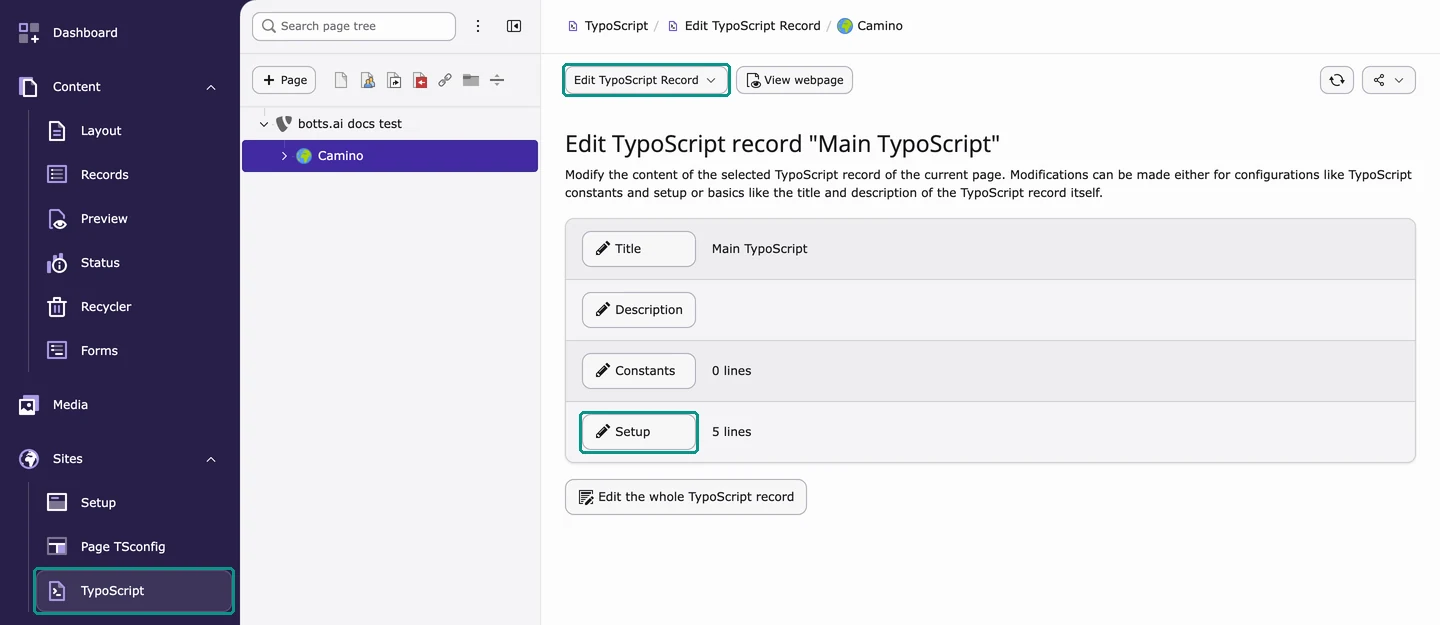
If the page says TypoScript settings have been implicitly generated from site sets includes and there is no Setup button, your site loads its TypoScript from files. Continue with If your site uses site sets.
Step 4: Paste the lines at the end of Setup
Click Setup. Click at the end of the last line in the field, press Enter to start a new line and paste the lines from above, with your key. Leave the existing lines as they are.
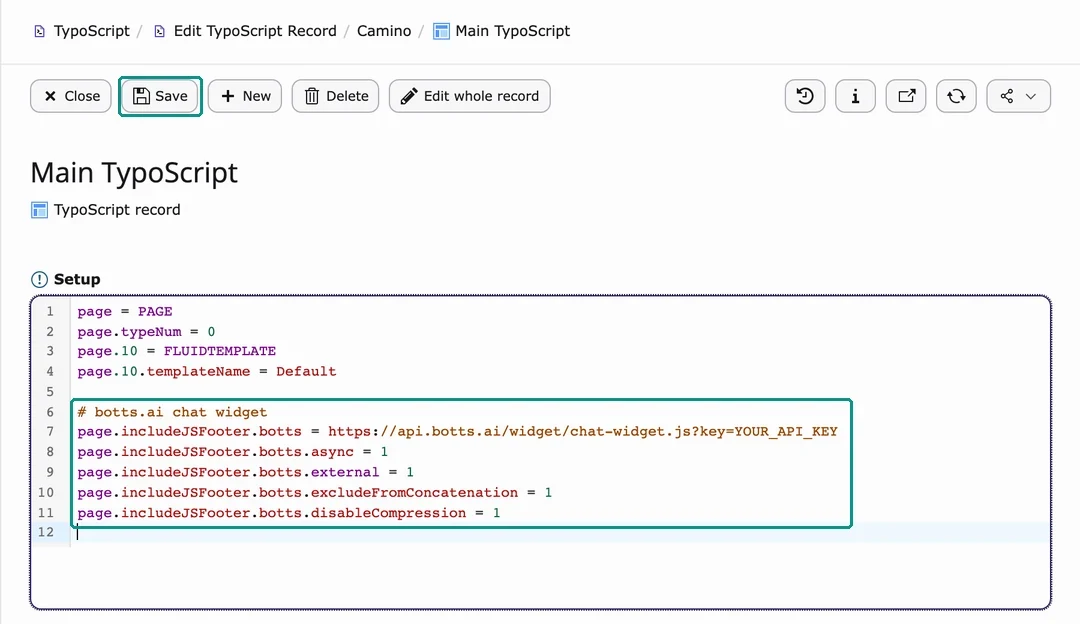
Step 5: Save your changes
Click Save at the top of the form.
Step 6: Flush the frontend caches
Click the lightning icon in the top bar and choose Flush frontend caches. TYPO3 stores finished pages in a cache; this makes it rebuild them with the widget.
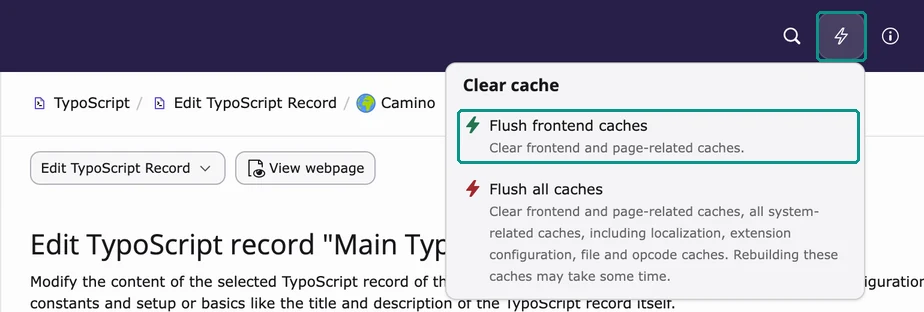
Step 7: Check the widget on your site
Open your public site in a private window, reload the page and wait a moment. The chat launcher appears in the bottom-right corner, or wherever you placed it in the widget editor. Open it and send a test question. Check a subpage and your phone as well.
Tip
It worked if the widget shows on your public site, opens, and answers your test question.
If your site uses site sets
Newer TYPO3 sites often load their TypoScript from site sets, which are files in a site package. They have no Setup field to edit in step 3. If an agency or developer maintains the site, send them the lines above so they can add them to the site package.
If you look after the site yourself and want to stay in the backend, create a small TypoScript record on the root page instead:
- In the left menu, go to Content → Records (TYPO3 v13: Web → List) and click your site's root page in the page tree.
- Click Create new record, then TypoScript record.
- Enter a title such as
botts.ai widget, paste the lines into the Setup field and click Save. Leave the other tabs as they are. - Flush the frontend caches as in step 6, then check your site as in step 7.
TYPO3 applies this record on top of the TypoScript from your site sets.
If the widget doesn't appear
- Check that the lines are in the Setup field of the TypoScript record on your root page, that you saved, and that you flushed the frontend caches.
- Check the key in the first
page.includeJSFooter.bottsline:YOUR_API_KEYmust be replaced with your own key, without spaces or quotes. - Check that TYPO3 uses the lines: in the TypoScript module, choose Active TypoScript and look for
includeJSFooterunderpage. If your site names its page object something other thanpage, ask whoever set up the site. - Clear other caches. Your host's cache or a CDN in front of your site can keep serving the page without the widget.
- Test in a private window without an ad blocker. If your cookie banner or consent tool blocks scripts, check its configuration. If your site sends a Content Security Policy, which TYPO3 can do, it must allow
api.botts.ai. - Check that the key belongs to the right deployment and that the deployment is switched on in the Deploy tab.
Change or remove the widget
Colors, texts, the launcher and every other widget setting are changed in the botts.ai editor. Your site picks them up without any change in TYPO3. The lines only need changing if the deployment's key changes: then replace the key in the first page.includeJSFooter.botts line.
To remove the widget, delete the botts.ai lines (the comment and every line starting with page.includeJSFooter.botts) from the Setup field, save and flush the frontend caches again.
Note
The screenshots show TYPO3 v14 in English. Menu and button names can differ with your TYPO3 version and backend language.
More help
- TYPO3 documentation: TypoScript backend module
- TypoScript reference: includeJSFooter
- The general steps for any website: Embed code
Last updated on October 4, 2026