
Knowledge Base
Build the knowledge behind your agent on botts.ai. Crawl your website, upload documents, manage sources, run AI search, and understand page and storage limits — then link a Knowledge Base to an agent for retrieval.
A Knowledge Base is the Information layer — the first of the Three I's. It is where you feed your agent the facts it needs: crawl your website or upload documents, and botts.ai indexes the content so your agent can retrieve accurate answers in real time.
Knowledge Bases are independent of agents. One agent can be linked to multiple Knowledge Bases, and one Knowledge Base can be shared by multiple agents — for example a single product catalogue feeding both a support bot and a sales bot.
You manage Knowledge Bases under Knowledge in the left sidebar.
Who can do what
Browsing a Knowledge Base and creating or changing one require different roles.
| Action | Required role |
|---|---|
| View Knowledge Bases, browse sources and documents, view chunk text, run AI search | Builder, Admin, Owner |
| Create, rename, delete a Knowledge Base | Admin, Owner |
| Add or delete sources, upload files, trigger crawls, change crawl settings | Admin, Owner |
Builders can browse a Knowledge Base, open documents, and run AI search, but they cannot create, edit, delete, crawl, or upload — those write actions are Admin and Owner only. Members have no access to the Knowledge surface and are redirected to Chat. These rules are enforced by the server on every request, not just hidden in the interface.
Creating a Knowledge Base
- Go to Knowledge in the sidebar.
- Click Create.
- Enter a Name (up to 255 characters) and click Create.
Creating a Knowledge Base needs only a name — there is a single input on the form. You are taken to the new Knowledge Base's detail page, where you add sources.
You can rename a Knowledge Base later from the detail page header using the pencil icon (a renamed name is capped at 200 characters). Deleting a Knowledge Base is done from the trash icon on its card in the list, behind a confirmation dialog.
The Knowledge Base list
The list page shows a usage banner with two bars at the top, followed by a card for each Knowledge Base.
Each card shows the name, a short slug ID, and counts for sources, documents, and pages, plus total stored size in MB. Click a card to open its detail page; use the trash icon to delete it.
The two usage bars are org-wide:
- Knowledge-base pages — how much of your Knowledge Base size allowance you have used (used / limit pages, or
∞if unlimited). - Upload storage — the combined original size of your uploaded files in MB.
Both bars turn yellow above 75% usage and red above 90%.
Adding sources
A Knowledge Base is built from sources. There are two kinds:
- Website — a URL that botts.ai crawls and indexes.
- File — a document you upload.
Add a website to crawl
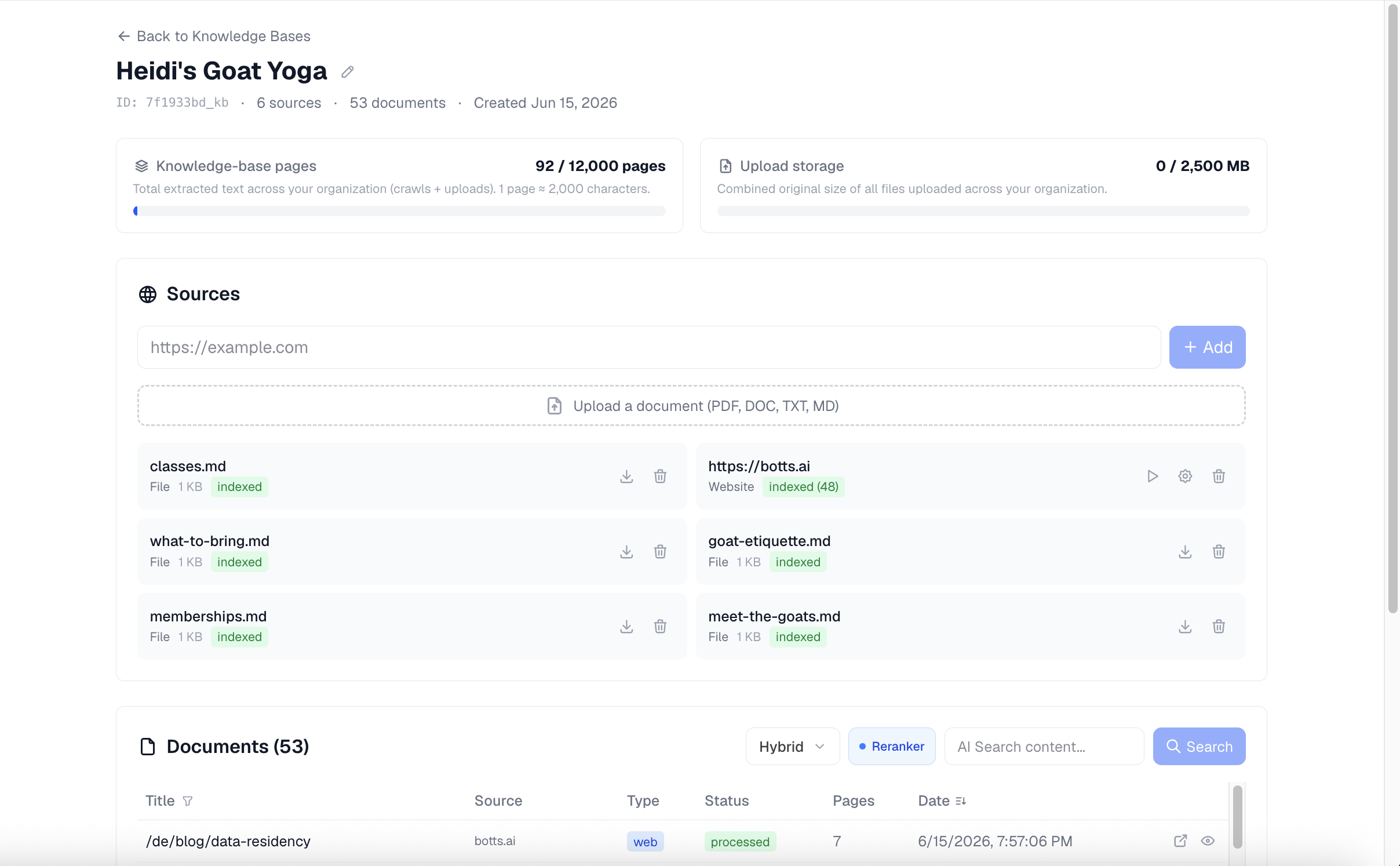
In the Sources section, type a URL into the Add source URL box and click Add. If you leave off http:// or https://, botts.ai prepends https:// automatically. Adding a website creates the source; you then start indexing it with the Play (crawl) button.
Upload documents
Drag files onto the upload area, or click it to pick files. You can select multiple files at once. Supported file types are:
| Type | Extensions |
|---|---|
.pdf | |
| Word | .doc, .docx |
| Text | .txt |
| Markdown | .md |
Each file can be up to 100 MB. Larger files are rejected before upload.
File sources show a Download button that returns the original file. Website sources show Play (crawl) and a gear (settings) button instead. Every source has a Delete button.
Crawling a website
Crawling fetches pages from a website source, extracts their text, and indexes it. Start a crawl with the Play button on a website source. While a crawl runs, the interface polls for progress every few seconds and the source shows a live crawling (N pages) status that you can click to open the Crawl Progress modal.
A website source moves through these states:
| Status | Meaning |
|---|---|
| Not indexed | The source was added but never crawled. |
| Crawling | A crawl is running; shows crawling (N pages). |
| Indexed (N) | The crawl finished and N documents are indexed. |
| Failed | The crawl failed; an error message is shown. |
| Incomplete | The crawl was interrupted and auto-recovered — try again. |
Crawl settings
Open the gear icon on a website source to configure how it is crawled.
| Setting | What it does |
|---|---|
| Schedule | How often to re-crawl: manual, daily, weekly, or monthly. Scheduled crawls run automatically. |
| Max Pages | The most pages to fetch in one crawl (1–10,000; default 100). |
| Max Depth | How many links deep to follow from the start URL (1–5; default 3). |
| Exclude subdomains | When on, stays on the main domain and skips subdomains. Off by default. |
| Include PDFs | When on, downloads and indexes PDFs linked from crawled pages. Off by default. |
| Exclude paths | URL path patterns to skip, one per line. |
| Include paths | A whitelist of URL path patterns to crawl, one per line. |
| Exclude words | Pages containing any of these words are skipped, one per line. |
Manual re-crawls reuse the source's saved Max Pages and Max Depth. Changing the schedule to daily, weekly, or monthly registers an automatic recurring crawl; setting it back to manual (or deleting the source) removes it.
Max Pages is a per-crawl ceiling
Max Pages is a per-crawl ceiling, not your plan's storage limit. Crawls can run as long as you have credits — the size of your Knowledge Base is governed separately by the page limit described below. To keep a crawl within your remaining allowance, botts.ai automatically caps each crawl's extracted text to the headroom left under your plan's page limit.
Documents and full text
Indexed content appears in the Documents table, which you can sort (by title, source, type, status, pages or size, and date) and filter by title.
Document status reflects indexing:
| Status | Meaning |
|---|---|
| Processed | Text was extracted and embedded (green). |
| Processing | Still being indexed (yellow). |
| Skipped | No extractable text found on the page (orange). |
| Other | Any other state (gray). |
Each row shows a per-document pages count (one page is 2,000 characters of extracted text) and, for website documents, an external-link icon to the original URL. Click the eye icon to open the Document Viewer, which renders the document's full extracted text. The same full-text view is available from the Crawl Progress modal.
AI search and testing
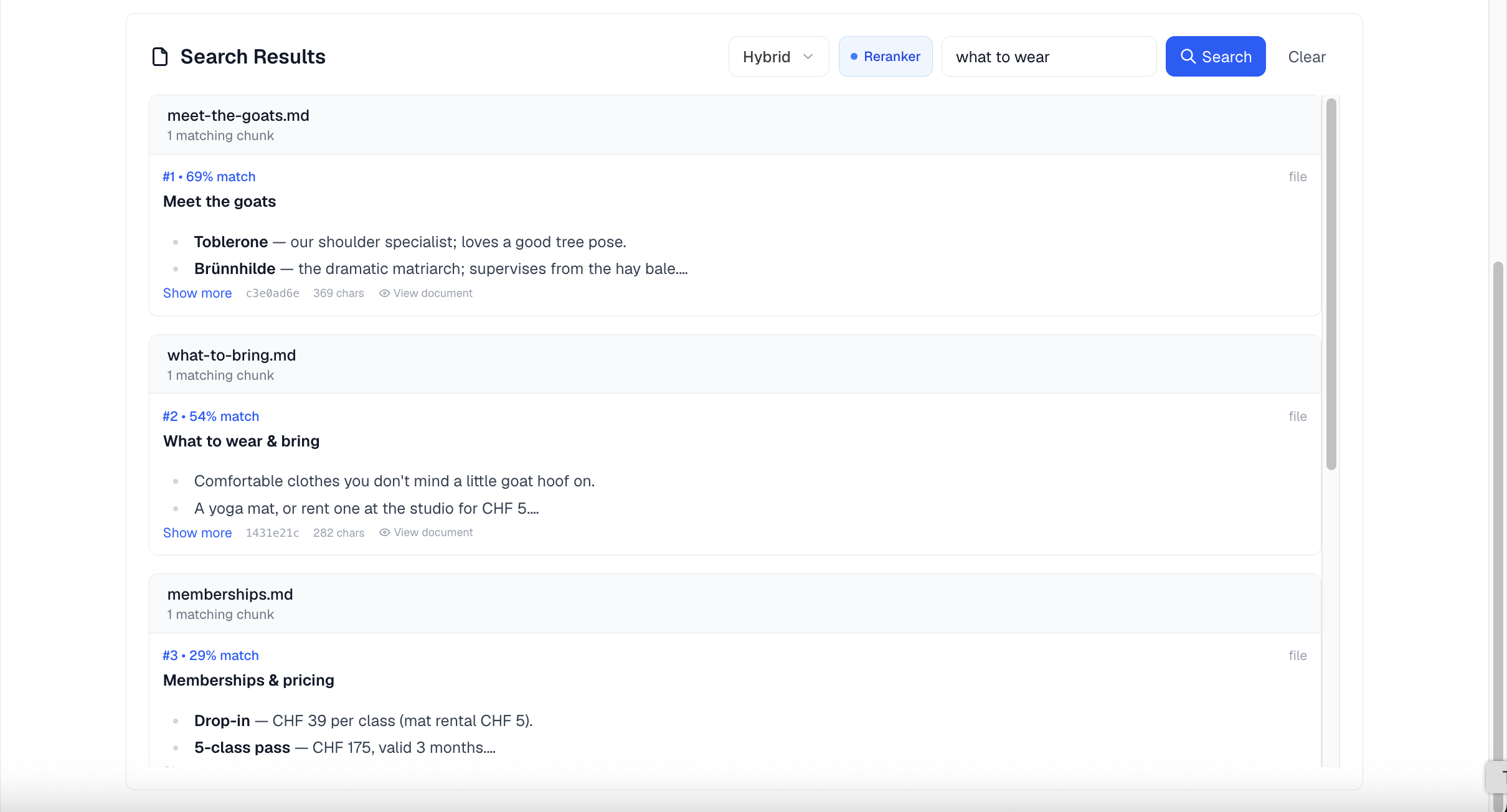
The detail page includes built-in AI Search so you can test what your agent will retrieve before linking the Knowledge Base to it. Switch the Documents section into AI Search mode, type a query, and review the matched chunks grouped by source, each with a percentage match.
Choose a search mode:
| Mode | Best for |
|---|---|
| Hybrid (recommended, default) | Balances semantic meaning, keyword matching, and document metadata. The best general choice. |
| Semantic | Conceptual or vaguely worded questions, where meaning matters more than exact words. |
| Keyword | Exact keyword matches such as names, product codes, or acronyms. |
A Reranker toggle (on by default) re-orders results so the most relevant chunks appear first. Results are grouped by source URL and show a percentage match; results that have no similarity score are labelled Keyword match. AI Search is available to Builders, Admins, and Owners.
Linking a Knowledge Base to an agent
A Knowledge Base only helps an agent once it is linked. In an agent's configuration, open the Knowledge Base section and select one or more Knowledge Bases.
Linking is all you need. As soon as at least one Knowledge Base is linked, the agent gains knowledge retrieval automatically — there is no separate tool to switch on. At query time the agent searches all of its linked Knowledge Bases and uses the most relevant results to answer.
Under the hood the agent uses a knowledge_search tool that searches every linked Knowledge Base (hybrid mode by default) and returns the strongest results across all of them. The model can also choose fulltext mode for exact terms or vector mode for conceptual questions. If no Knowledge Base is linked, the tool simply reports that none are available.
Two optional read-only tools, knowledge_browse (list Knowledge Bases, sources, and documents) and knowledge_read (read a specific document or chunk), can be enabled with the knowledge_browse toggle in the agent's built-in tools. These are only added when a Knowledge Base is also linked, and they can only reach Knowledge Bases linked to that agent.
Limits
Two separate org-wide limits govern Knowledge Base size, both shown on the usage bars. A limit of ∞ (unlimited) is never blocked.
Page limit (Knowledge Base size)
Your page limit covers all stored extracted text — crawled pages and uploaded documents combined. One page equals 2,000 characters of text (roughly one dense A4 page).
| Plan | Max pages |
|---|---|
| Personal | 800 |
| Business | 4,000 |
| Business Pro | 12,000 |
| Enterprise | Unlimited |
Upload limit (uploaded file size)
Your upload limit is the combined original size of your uploaded files in MB. Crawled content stores no raw file, so it never counts toward this limit.
| Plan | Max upload size |
|---|---|
| Personal | 200 MB |
| Business | 1,000 MB |
| Business Pro | 2,500 MB |
| Enterprise | Unlimited |
Grandfathered Lite organizations keep their previous limits (800 pages, 200 MB). A workspace without an active plan is locked.
When a limit is reached
Crawls and uploads consume credits per page, so both are blocked if your credit balance reaches zero. When you try to upload or crawl:
- Out of credits — the action is blocked until you top up your credits.
- At your page limit — uploads and crawls are blocked once your Knowledge Base is already at its page cap.
- Over your upload limit — an upload is blocked when the new file would push your combined uploaded size over the MB limit. Because the file size is known up front, this check is exact.
The page limit only blocks when you are already at the cap, so a single large upload can slightly overshoot the page count — bounded by your upload (MB) limit. If the usage service is temporarily unreachable, limits are not enforced (they fail open), so a transient outage never blocks your work.
Data residency and privacy
All Knowledge Base data stays in Switzerland for every organization, regardless of plan. botts.ai runs on Swiss infrastructure (Infomaniak): uploaded files and crawled documents live in Swiss object storage, the search index is in a Swiss database, and embedding and reranking run on Swiss infrastructure. botts.ai does not train AI models on your data.
Next steps
- Agents → — Link a Knowledge Base to an agent and write its system prompt.
- Quickstart → — Build your first Knowledge Base from a website and files.
Last updated on September 13, 2026