
Install on Jimdo
Add your botts.ai chat widget to a Jimdo Creator website through the Edit Head field, in five steps.
This guide adds the chat widget of a botts.ai website deployment to a Jimdo website. It uses Edit Head in Jimdo Creator, a field for your own code that Jimdo adds to your website's head section. You paste the code once and the widget shows on your site.
Before you start
You need:
- Your Jimdo login for the website.
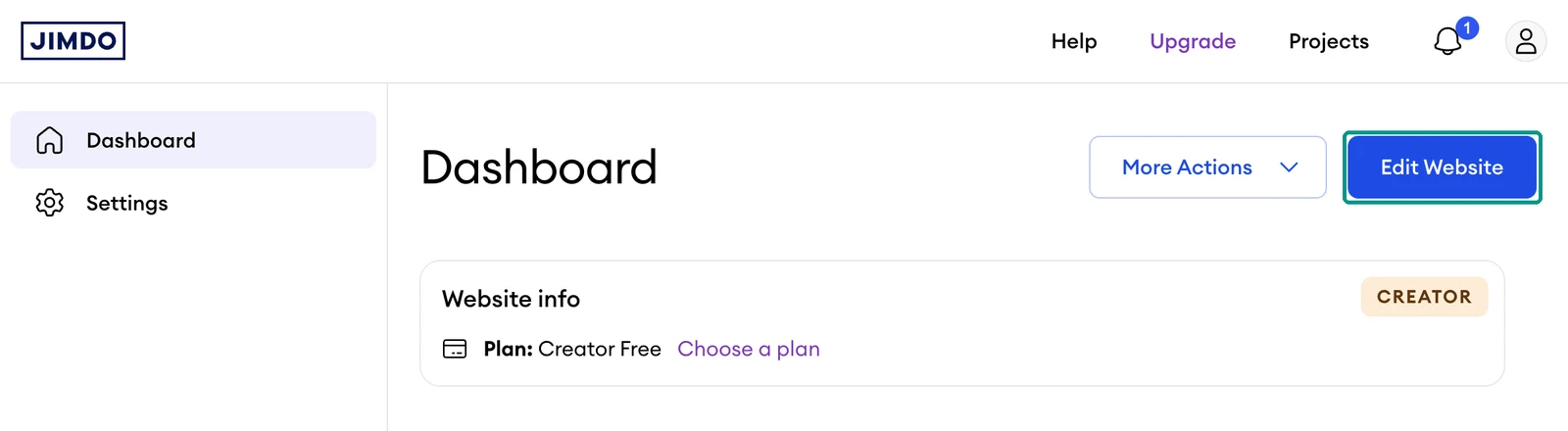
- A website built with Jimdo Creator. Jimdo offers two products, Jimdo Creator and the Jimdo Website Builder, and only Creator lets you add your own code. Jimdo's Creator price list includes custom coding in every Creator plan, Creator Free included, but excludes "External widgets and apps" on Creator Free, so the widget may not be allowed there. Creator Pro and higher include both. You're on Creator if your dashboard shows a CREATOR badge on the Website info card, the editor's top bar shows JIMDO CREATOR, the editor has a menu at the top left, or your Jimdo subdomain ends in
jimdoweb.comorjimdofree.com. - The embed code of your website deployment. In botts.ai, open Agents, pick your agent, go to the Deploy tab and open the Website deployment. The Install section at the bottom of the editor shows the code with a copy button. No website deployment yet? See Deployments.
Warning
Using the Jimdo Website Builder? Its Jimdo subdomain (under Website Builder → Domains) ends in jimdosite.com, even if you also use your own domain. Jimdo states that the Website Builder doesn't support custom code, scripts or external widgets, so the botts.ai widget can't be added there, and upgrading the plan doesn't change that. For custom code Jimdo recommends Jimdo Creator, a separate product: you would build your website there instead. Jimdo's standard sign-up creates a Website Builder site, so start a new Creator site from Jimdo's Creator sign-up page.
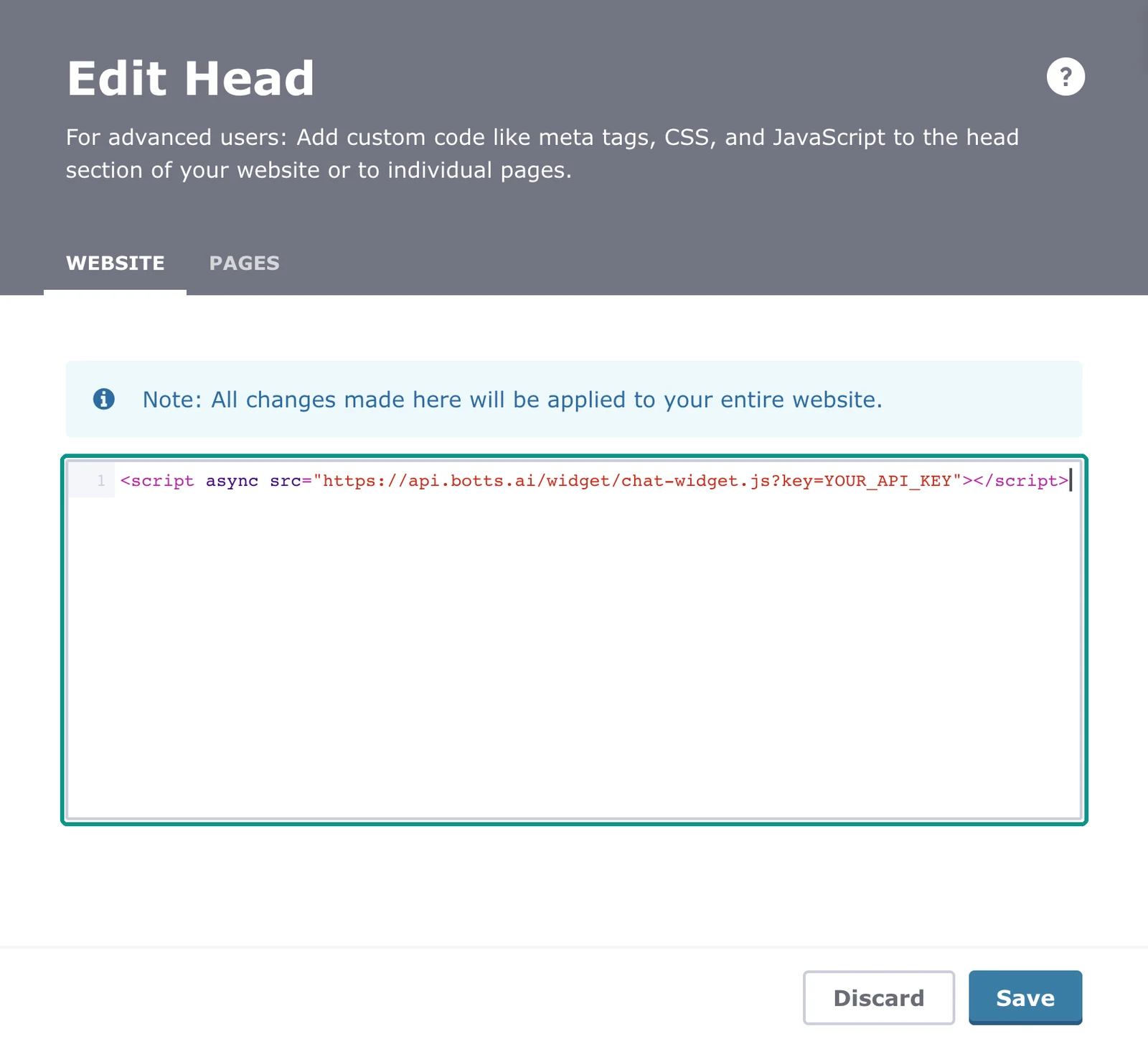
The embed code looks like this, with your deployment's own key in place of YOUR_API_KEY:
<script async src="https://api.botts.ai/widget/chat-widget.js?key=YOUR_API_KEY"></script>
Note
The website widget needs the Business plan or higher. The Personal plan includes the internal chat only.
Step 1: Open your website in the editor
Log in to your Jimdo account, choose your website (under Projects in the top bar if you have several) and click Edit Website at the top right of the dashboard. The Creator editor opens with a bar at the top.
Step 2: Open Edit Head
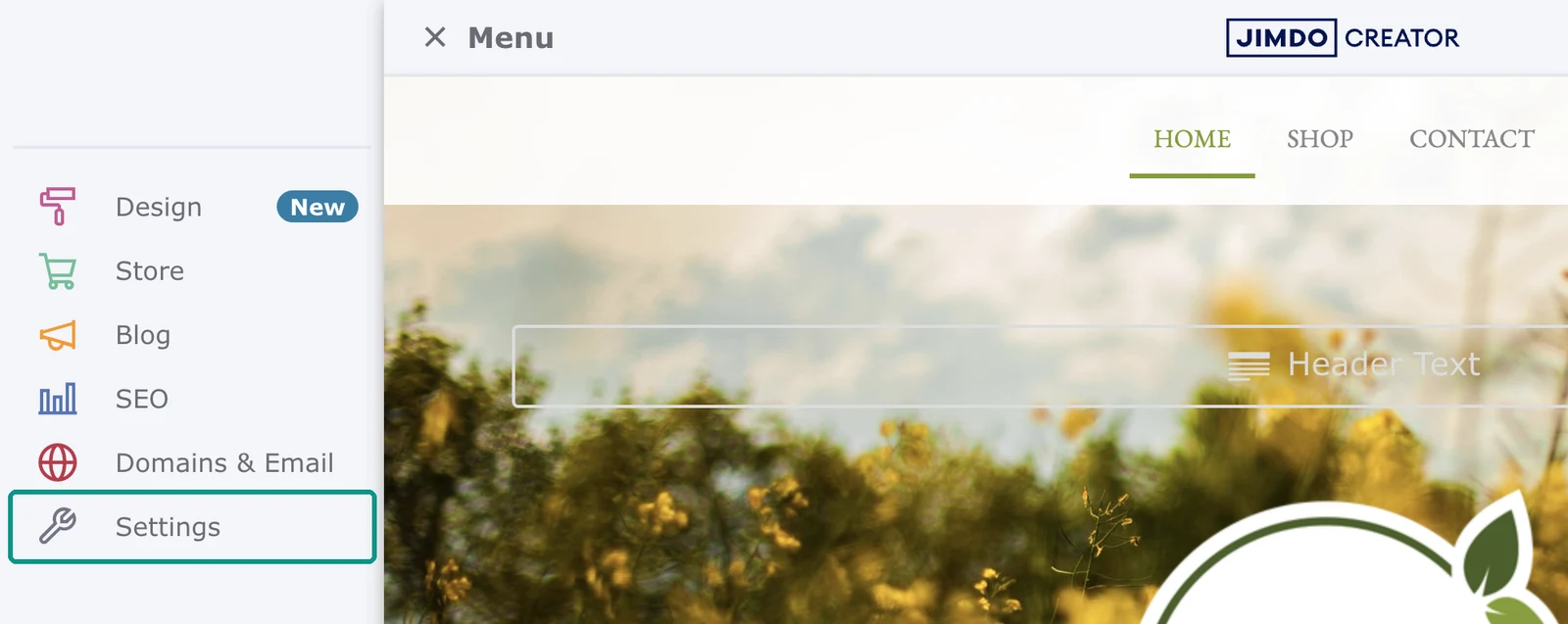
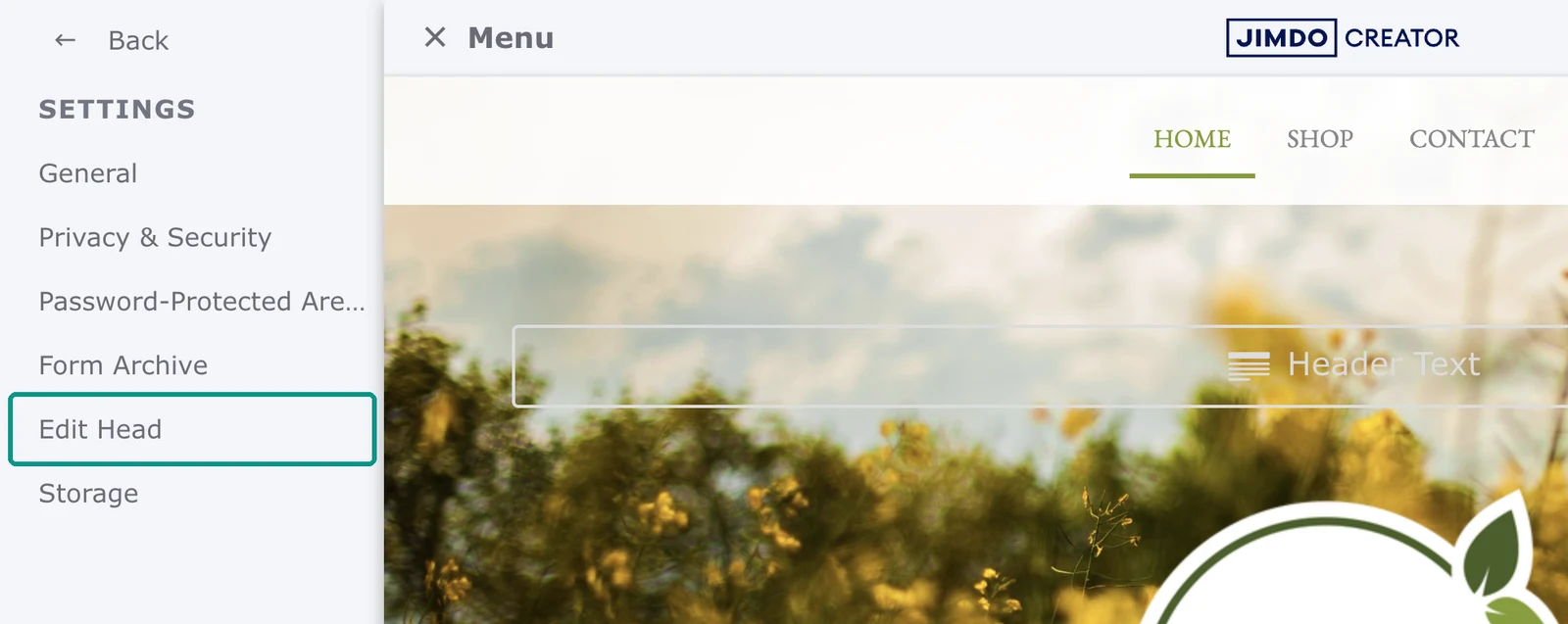
Open the Menu at the top left of the editor and go to Settings → Edit Head. Use the editor's menu: the Settings item in the dashboard's left menu doesn't lead to Edit Head.
Step 3: Paste the code
Leave the Website tab selected, as it is by default, so the code loads on every page. The Pages tab adds code to single pages only. Paste your embed code into the field. If the field already holds code, put the botts.ai code on a new line below it and leave the rest as it is. Paste the code exactly as copied: the address and the key must not change.
Step 4: Save
Click Save at the bottom right. The button turns grey and reads Saved. Jimdo Creator has no separate publish step: saved changes are live for your visitors right away.
Step 5: Check the widget on your site
Open your public site in a private window, reload the page and wait a moment. The chat launcher appears in the bottom-right corner, or wherever you placed it in the widget editor. Open it and send a test question. Check a subpage and your phone as well.
Tip
It worked if the widget shows on your public site, opens, and answers your test question.
If the widget doesn't appear
- Check that your website runs on Jimdo Creator. The Jimdo Website Builder has no place for your own code.
- Check that the complete code is in Edit Head and that you clicked Save.
- Check whether Under Construction Mode is on: open Settings → Privacy & Security and switch to the Under Construction Mode tab. This mode hides your website's content from visitors, so test the widget with it switched off.
- Reload the page or clear your browser cache, then test in a private window without an ad blocker. If your cookie banner or consent tool blocks scripts, check its configuration.
- Check that the key belongs to the right deployment and that the deployment is switched on in the Deploy tab.
- On Creator Free, Jimdo's price list includes custom code but excludes "external widgets and apps". If the code is saved and the widget still doesn't show, ask Jimdo support whether your plan allows it.
Change or remove the widget
Colors, texts, the launcher and every other widget setting are changed in the botts.ai editor. Your site picks them up without any change in Jimdo. The code only needs replacing if the deployment's key changes.
To remove the widget, open Settings → Edit Head again, delete only the botts.ai script line and click Save.
Note
The screenshots show Jimdo Creator in English. Menu and button names can differ with your Jimdo language.
More help
- Jimdo Creator Help: How do I insert my own code?
- Jimdo Help: Which Jimdo product am I using? Creator or Website Builder
- Jimdo Website Builder Help: Adding custom code or external widgets in Jimdo Website Builder
- The general steps for any website: Embed code
Last updated on October 4, 2026