
Deployments
How to deploy your AI agent as a website chat widget, an internal team chat, or a phone agent. Covers channels, models and failover, access control, widget customization, voice settings, phone numbers, and data residency.
A deployment is how your AI agent reaches the people who talk to it. It connects a configured Agent to a specific channel, gives you channel-specific settings (look and feel, voice, access control), and assigns the AI model that powers that channel.
You manage deployments from an Agent's Deploy tab. All deployments for an agent are listed there, each on its own card. They share the same Agent configuration and Knowledge Base — changes to the system prompt or knowledge base apply to every deployment instantly.
Who can manage deployments
| Action | Required role |
|---|---|
| View deployments | Builder, Admin, Owner |
| Create, edit, delete, regenerate API key | Admin, Owner |
| Manage phone numbers (buy, assign, release) | Admin, Owner |
Members cannot see the Deploy tab's deployment controls. Builders can view deployments but cannot change them.
Channels
botts.ai has three live channels today. Three more appear in the channel picker but are not yet available — they are greyed out with a Coming Soon badge.
| Channel | Status | What it is |
|---|---|---|
| Website | Live | A chat widget embedded on your public website. |
| Chat (Internal) | Live | A chat for your own organization members, with access controls. |
| Phone | Live | A voice agent reachable on a real phone number. |
| Telegram | Coming soon | Greyed out in the picker. |
| Coming soon | Greyed out in the picker. | |
| Coming soon | Greyed out in the picker. |
Creating a deployment
- Open your Agent and go to the Deploy tab.
- Click New Deployment to open the channel picker.
- Pick a channel tile.
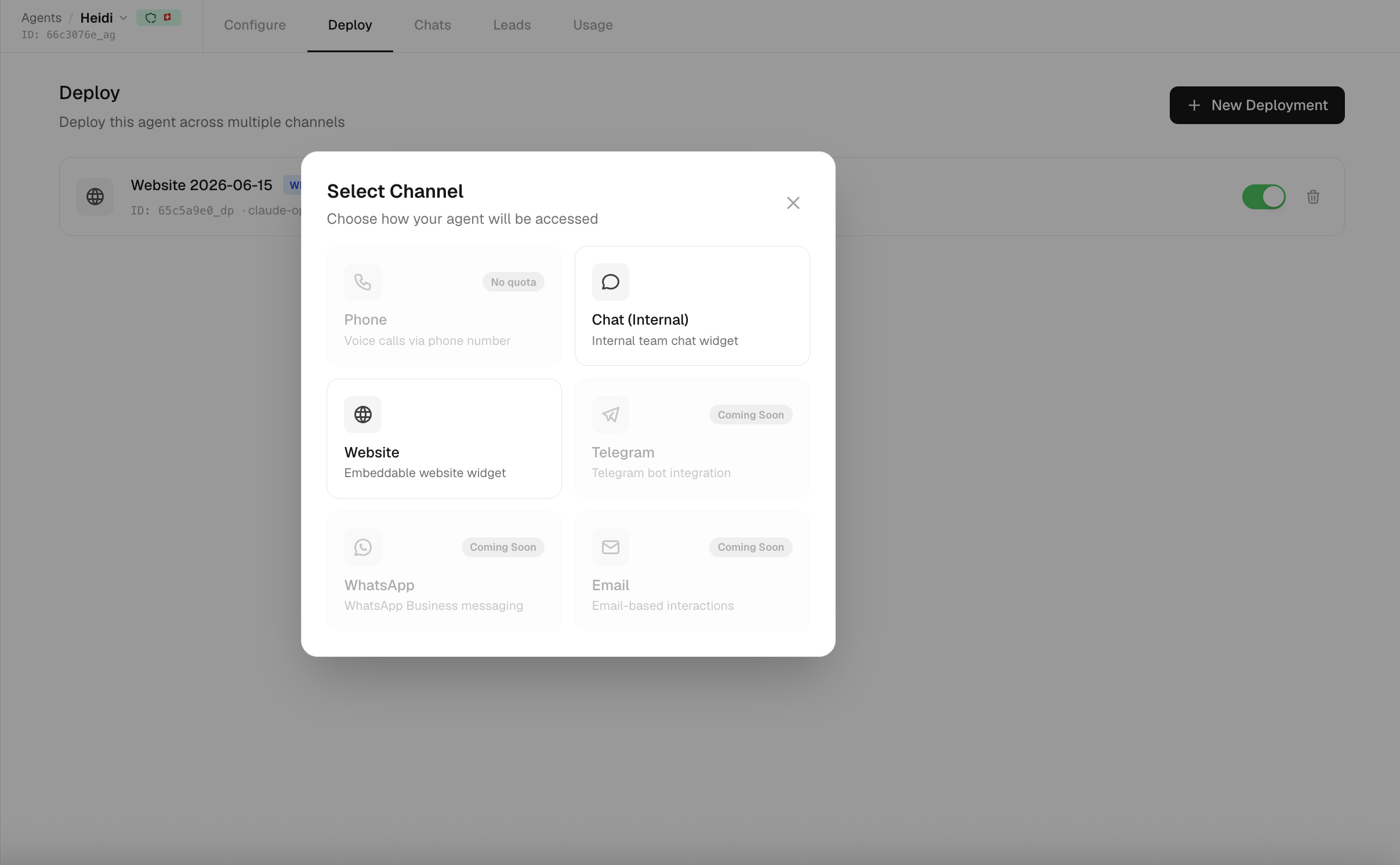
Some tiles can be disabled for your org:
- Phone is disabled with a No quota badge when you have no remaining phone-number quota and no spare pooled number.
- Chat (Internal) is disabled with an already configured badge once the agent has an internal chat. Each agent can have only one internal chat.
There is also an overall deployment limit tied to your plan. If you reach it, creating a deployment is blocked with a message to upgrade your plan to add more.
Each card in the deployment list shows the channel, the deployment name (hidden for internal chat), the model name, a data-assessment shield badge, the deployment ID, and an active/inactive toggle plus a delete button. Phone cards also show the access-mode badge and the assigned number (or "No number").
Choosing a model
Every deployment runs on one primary AI model, which is required. You pick it from a model picker when you create or edit the deployment. Model text rates are shown per 1,000 words in the picker, and usage is billed in credits.
A few rules govern which models you can choose:
- The list is filtered by your organization's data-residency setting. Under a strict setting the list can be short or even empty. See Data residency below.
- Phone deployments require a voice model. Every other channel requires a text model. The pickers pre-filter accordingly, and the backend rejects a mismatched model (for example, "Phone deployments require a voice model" or "Voice models can only be used for phone deployments").
- Changing the model takes effect immediately with no downtime.
If a model you already selected later becomes non-compliant with your residency setting, the deployment keeps running on it but is flagged with an amber residency-warning badge (see below). botts.ai never silently changes your model.
Backup model and failover
Website and Chat (Internal) deployments can also have an optional backup model, chosen from a second picker. When the primary model's provider is unreachable, requests transparently fail over to the backup, so a provider outage doesn't take your chat down.
Failover is text-only. Phone deployments have no backup model because voice failover is not supported.
A few constraints apply to the backup:
- It must be a different model from the primary.
- It must be a text model (not voice).
- It must satisfy the same data-residency setting as the primary, because it serves real traffic during an outage.
Choosing a backup on the same provider as the primary gives you little protection — if that provider is down, both models are down. The picker shows an amber warning in this case.
Failover triggers only when the provider fails to answer:
- HTTP 5xx server errors
- HTTP 429 rate-limit / quota errors
- Connection-level failures: timeouts, network unreachable, DNS failures
- The specific case of a 400/404 saying the model itself was decommissioned or is invalid (a different backup model can still serve the request)
- An empty generation: the provider returns success but no reply at all. This is retried first, and failed over if it happens again.
It does not fail over on other client errors (bad requests, authentication, validation). Those would fail the same way on the backup, so retrying would only add latency.
Why empty generations count
A provider that answers with nothing used to end the turn silently, which reads to the customer as the agent ignoring them. Treating it as a failure means it is retried, and then answered by the backup model, instead of being lost.
Website widget
The website widget is a customizable chat bubble that sits on your public site, by default in the bottom-right corner. Visitors click it to chat with your agent. Website deployments are public — there is no access mode; access is controlled by the embed/API key.
Create
When you pick Website, a create form captures the essentials:
- Name — defaults to
Website <date>. - Model (text-only) and an optional backup model.
- Initial customization: welcome message, theme and message-bubble colors, suggested messages, and position.
The default colors are an indigo header and user-bubble (#6366f1), a white chat background, and a light-grey bot bubble. Rich customization happens after creation, in the editor.
Edit: the split-pane editor
Opening a website deployment shows a split-pane editor.
The left panel holds the name, model and backup-model pickers, the full widget settings, and the embed code. The right panel is a live preview that updates as you change styling. You can collapse the preview between the widget-button view and the full chat, and adjust its size and side.
Available customization options:
| Group | Options |
|---|---|
| Header | Background color, font color, title |
| Chat area | Background color |
| Message bubbles | User and bot bubble colors |
| Messages | Welcome / init message, suggested messages |
| Layout | Position (left / right), size (s / m / l) |
| Preview bubble | Enable, message, colors |
| Extras | Logo, feedback, loading animation, link previews |
Link previews can be enabled and limited to a list of allowed domains, so links the agent sends render as rich previews in the widget.
Important
Widget changes are not auto-saved. The live preview updates instantly, but you must click Save Changes in the sticky footer to persist them. A Reset action discards unsaved edits.
Embed code
Copy the embed snippet from the editor and paste it into your site's HTML, just before the closing </body> tag:
<script async src="https://your-api-url/widget/chat-widget.js?key=YOUR_API_KEY"></script>
The snippet is keyed by the deployment's unique API key (the key query parameter), loads asynchronously, and works on any platform — WordPress, Shopify, Squarespace, Wix, or custom HTML. A copy button is provided.
A visitor's conversation is restored when they return to the site. Links in answers get a preview card; parameters that look like tokens or keys are stripped from the address before the preview is fetched, and the card still links to the original address.
API key
A website deployment has a unique API key (prefixed bts_) that authenticates widget requests. Admins and Owners can rotate it with Regenerate key; the old key stops working as soon as the new one is issued, so update your embed code afterward. The key is revealed on request rather than listed with the rest of the deployment, so it is not handed out with every read of your deployments.
Note
Keys exist only for public channels, which today means the website widget. Internal chat and phone deployments have no API key and never need one: internal chat reaches signed-in members, and phone calls arrive over the telephony network, which a widget key plays no part in. Asking for a key on those channels returns "not applicable for this channel", and a key can never be used to reach them.
Chat (Internal)
Chat (Internal) is a chat channel for your own organization members rather than the public — for example, a team-facing assistant over your knowledge base. Each agent can have only one internal chat.
Configuration:
- Model (text-only) and optional backup model.
- Avatar / logo — a circular image for the chat.
- Welcome message — a multi-line opening message.
- Show Tool Use — a toggle (on by default) that shows members which tools the agent is using as it works.
- File upload — a toggle that lets members attach documents to the chat for the agent to read. See Attaching documents.
- Access control — see below.
The default name is Chat Internal and is hidden on the deployment card.
Access control
Access modes apply to Chat (Internal) and Phone. Website deployments have no access mode (they're public via the embed key).
| Mode | Who can use it |
|---|---|
| Public | Anyone. Offered for Phone only. |
| Organization | Any member of your organization. |
| Role-based | Members at or above a minimum role (Admin or Builder). |
| Invite-only | Only the specific members you select. |
- Phone offers all four modes and defaults to Public.
- Chat (Internal) offers Organization, Role-based, and Invite-only (no Public) and defaults to Organization.
- Role-based reveals a minimum-role picker (default Builder).
- Invite-only reveals a member checkbox list.
Phone agent
A phone deployment answers real phone calls with a real-time voice model. Customers dial the assigned number and speak with the agent.
Create
Selecting Phone creates the deployment immediately — there's no create form first. You'll see a brief "Creating phone deployment…" spinner, then the edit view. botts.ai auto-picks a voice model (the one you selected if it's a voice model, otherwise the first available voice model). If your org has no voice model available, creation fails with "No voice model is available." The default name is Phone <date>, and the default access mode is Public.
Voice and model settings
The phone edit form shows a voice-only model picker, a voice picker, and a single-line welcome message (the agent's opening line). The default voice is alloy.
Turn detection
Turn detection controls how the agent knows the caller has finished speaking.
| Option | Behavior |
|---|---|
| Normal (recommended) | Server voice-activity detection. Reveals advanced sliders. |
| Semantic | Semantic detection. Reveals an Eagerness select (auto / low / medium / high). |
| Disabled | No automatic turn detection. |
With Normal selected, advanced sliders appear:
| Slider | Range | Default |
|---|---|---|
| Threshold | 0–1 (step 0.05) | 0.5 |
| Prefix padding | 0–1000 ms (step 50) | 300 ms |
| Silence duration | 50–2000 ms (step 50) | 200 ms |
Advanced settings
| Setting | Options / default |
|---|---|
| Transcription language | Auto, English, German, French, Italian (Auto by default) |
| Noise reduction | None, near-field (default), far-field |
| Tool sound | A sound played while the agent uses tools |
| Record calls | Off by default |
| Max call duration | Set in minutes. New phone deployments default to 10 minutes in the form (the underlying schema default is 5 minutes). |
Calls are transcribed with Whisper. Recording is off unless you enable Record calls.
Phone numbers
Phone numbers are an org-level resource managed by Admins and Owners. You buy numbers into an organization pool, then assign a pooled number to a phone deployment. Managing numbers is blocked for Builders and Members.
Supported countries
You can buy numbers in: United States, United Kingdom, Germany, Italy, Switzerland. Searchable number types are local, mobile, and toll-free; only voice-capable numbers are returned. For US numbers you can filter by area code; other countries filter by a digit pattern.
Quota
Each organization has a phone-number limit. The picker shows used / limit. When you've used your full quota, buying a new number is blocked with "Phone number quota exhausted… Contact support to increase your limit."
Assign and unassign
- Assigning a pooled number to a deployment is free and instant. It wires the number's voice webhook to that deployment. A number can hold only one deployment, and a deployment can hold only one number.
- Unassigning returns the number to the pool and clears its webhook.
- Deleting a deployment automatically unassigns its number back to the pool (it is not released).
Releasing a number
Releasing a number back to the carrier removes it from your pool entirely. A number must be unassigned first, and it cannot be released until 30 days after you bought it (the carrier's hold period). The picker shows when each number becomes releasable.
Data residency and transparency
Every deployment exposes where its data physically lives, and your organization can require models hosted in specific places.
Residency tiers
Your organization's data-residency setting filters which models you can pick.
| Tier | Requirement |
|---|---|
| Swiss / Swiss | Hosted in Switzerland by a Swiss company. |
| Swiss / any | Hosted in Switzerland (any company). |
| Europe / Europe | Hosted and operated in Switzerland or the EU. |
| Europe / any | Hosted in Switzerland or the EU. |
| Global (default) | No restriction. |
Switzerland counts as European but is not part of the EU. If a model violates a non-global tier, selecting it is rejected ("Selected model is not allowed by your organization's data-residency setting"). The backup model is checked against the same tier when you set it. A model you already chose is not re-checked on save — if it later becomes non-compliant it keeps running but is flagged.
Data assessment badge
Each deployment shows a small emerald shield badge summarizing the countries where its data sits. Hovering reveals a transparency panel.
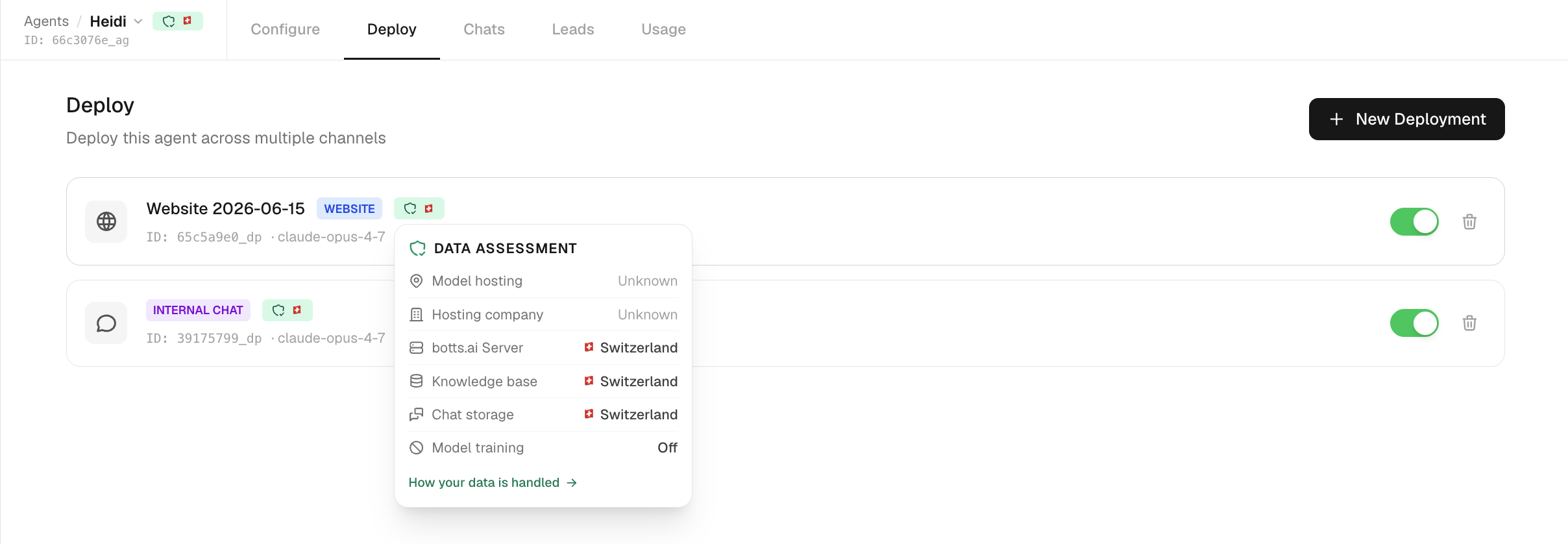
The panel lists:
| Row | Value |
|---|---|
| Model hosting | The model's hosting country |
| Hosting company | The model provider's country |
| Backup hosting / company | Shown only when the backup differs from the primary |
| Phone provider | United States (Twilio), phone deployments only |
| Web search | France (Staan.ai), only when the agent has web search enabled |
| Infrastructure | Switzerland |
| Knowledge base | Switzerland, only when the agent has a knowledge base |
| Chat storage | Switzerland |
| Training | Off, botts.ai does not train on your data |
The panel links to a data-residency explainer for more detail.
Two rows can leave Switzerland
Whatever model you choose, two capabilities route data abroad by their nature and are disclosed as their own rows: phone calls through a US telephony provider, and web search through a French search provider. Both appear only when the deployment actually uses them, so an agent with web search switched off has no French row. Everything else, including your knowledge base and chat history, stays in Switzerland.
Managing multiple deployments
You can run several deployments on the same agent — for example a public website widget and an internal team chat, or separate phone numbers for different countries. Each deployment has its own channel, model, and settings (and, for the website widget, its own API key), but they all share the same Agent and Knowledge Base. Each card has an active/inactive toggle so you can pause a deployment without deleting it.
Last updated on September 13, 2026