
Team & Billing
Manage your organization, invite team members, assign roles, and handle plans, credits, and billing on botts.ai.
botts.ai is built for teams. From the dashboard you can invite colleagues, assign roles with different permission levels, choose where your data is processed, and manage your plan and credits — all under My Organization in the sidebar.
The My Organization area groups these pages:
- General — organization profile, billing identity, logo, feature toggles, internal chat visibility, document retention, and server location.
- Members — your members and pending invites.
- Plans & Billing — plan selection, credits, packages, auto-recharge, and invoices.
- Phone Numbers — your organization's number pool. Not shown on the Personal plan, which has no external channels.
- Usage — credit balance and usage analytics (listed under Analytics in the sidebar).
Organizations
Every botts.ai account belongs to an Organization — the shared workspace where your team collaborates on agents, knowledge bases, deployments, and conversations. When you sign up, an organization is created for you.
Each organization has an ID (its slug, shown read-only) and a set of profile fields you can edit on the General page. Only owners and admins can open the General page; for everyone else it is hidden.
General settings
On My Organization → General, owners and admins can edit:
- Organization Name — used across the dashboard. Names containing
<,>, orhttp(s)://URLs are rejected to prevent phishing (bare domains are allowed). - Logo — upload an image for your organization.
- Billing identity — billing email, name, country, address, postal code, and city. Swiss addresses offer autocomplete, and changes sync to your Stripe customer record.
- Notification Email — the address that receives organization notifications.
- Features — toggle Regular Chat and Endless Chat on or off.
- Internal Chat Visibility — the organization default for new internal AI chats: private or full. This applies forward-only; existing chats keep the visibility they were created with.
- Document Retention — how long documents attached in internal chat are kept before they are deleted automatically: 1 week, 2 weeks, 4 weeks, 3 months, 6 months, 1 year, or forever. This is an organization-wide policy rather than a per-upload choice, and it applies to new uploads. Documents already uploaded keep the expiry they were given. See Attaching documents.
- Server Location — your data-residency tier (see Data residency).
Deleting an organization is owner-only.
Team members
Roles and permissions
botts.ai uses a role-based access model with exactly four roles. There is one owner per organization.
| Role | What they can do |
|---|---|
| Owner | Everything. Manage billing, delete the organization, and all admin/builder abilities. |
| Admin | Manage members and invites, manage integrations and deployments, edit organization settings, and perform all billing actions (checkout, downgrade, cancel, packages, auto-recharge). Cannot delete the organization. |
| Builder | Build and analyze: create and edit agents; view deployments, knowledge bases, tools, conversations, forms, and people; manage forms and people; and use internal AI chat. Read-only view of billing (for limit notices). Cannot manage members, integrations, deployments, or organization settings. |
| Member | Chat-only. Can use the internal AI chat and nothing else. |
A few important nuances:
- Builders cannot manage deployments or integrations. They can view deployments but cannot create or configure them — that is owner/admin only.
- Members are chat-only. A member can only use internal AI chat. They cannot view agents, knowledge bases, conversations, deployments, tools, forms, people, usage, or billing. When a member signs in they see a full-screen chat with no sidebar and no header, and any attempt to open a build or analytics page sends them back to their chat. The same boundary is enforced by the API, not just the UI.
- Internal chat oversight is owner/admin only. Owners and admins can review other members' internal AI chats; builders cannot, because member-to-AI conversations are treated as more sensitive than agent analytics. Whether the message content (not just metadata) is visible is additionally controlled per-conversation by your Internal Chat Visibility setting.
Choosing a role
| Team member | Recommended role |
|---|---|
| Business owner / CTO | Owner |
| IT manager who handles billing and integrations | Admin |
| Marketing / content team who builds agents | Builder |
| Support person who only needs the AI assistant | Member |
Tip
Start with the minimum role someone needs. A member who later needs to see conversations and analytics can be promoted to builder; a member can never see those pages.
Inviting members
- Go to My Organization → Members.
- Click Invite.
- Enter the person's email address and choose a role: Admin, Builder, or Member. (Owner cannot be assigned by invite.)
- Optionally select invite-only deployments to associate with the new member (these connect them to specific internal chat or phone deployments when they accept).
- Send the invite. They receive an email with a link to join.
Invite rules:
- Seat limit. Inviting is blocked once you reach your plan's member limit. You'll be told the current count and limit and prompted to upgrade.
- Expiry. Invitations expire 72 hours after they're created.
- No duplicates. You cannot invite an email that is already a member or that already has a pending, unexpired invite.
- Pending invites appear in the Members area and can be revoked. You can't revoke an invite that has already been accepted.
Inviting and revoking invites requires the owner or admin role.
Member states, reactivation, and removal
Each member is either active or deactivated:
- Soft-deactivation is automatic. There is no manual "deactivate" button. When a plan downgrade drops you below your new seat count, members over the cap are deactivated automatically. Deactivated rows show a deactivated badge, and a deactivated user who signs in sees a screen telling them their organization access is blocked.
- Reactivate (owner/admin) flips a member back to active. Reactivation consumes a seat, so it is blocked if you're already at your member limit — upgrade first.
- Remove (owner/admin) deletes the membership. You cannot remove yourself, and you cannot remove an owner.
Changing roles and ownership
- An owner can set any role. An admin can set any role except owner.
- You cannot change your own role, and you cannot change another owner's role.
- Roles cannot be set to owner through the normal Members page.
- Ownership is single-owner. Transferring ownership is handled by botts.ai support: promoting someone to owner atomically demotes the current owner to admin, and the sole owner can never be demoted or removed. Contact us if you need to transfer ownership.
Plans and credits
botts.ai bills usage in credits. Your plan sets a monthly credit allowance plus resource limits; if you need more credits within a cycle you buy one-time packages or enable auto-recharge.
Plans
There are four tiers: Personal, Business, Business Pro, and Enterprise. New workspaces choose a plan right after signup — until a plan is chosen, the workspace is locked. Enterprise is custom and negotiated with sales; you can't self-checkout to Enterprise — book a meeting instead. The Plans page shows cards for Business, Business Pro, and Enterprise (plus your current plan's card if you are on Personal or the legacy Lite plan). The legacy Free and Lite plans are no longer offered to new customers; existing Lite organizations keep their price and limits.
Free trials
Personal starts with a 1-month free trial (150 starter credits) and Business with a 14-day free trial (1,500 starter credits). No credit card is needed to start, and each person can use one free trial, ever. Add a payment method before the trial ends to continue seamlessly on the full plan — otherwise the subscription ends and the workspace is locked (nothing is deleted) until you choose a plan. A workspace whose card-free trial simply ran out can subscribe to Personal afterwards; only workspaces that have paid before are excluded from a later Personal subscription.
Monthly prices
The same number is used for CHF, EUR, and USD. Yearly billing is about 17% cheaper (the Plans page shows a -17% badge on the Yearly toggle).
| Plan | Monthly | Yearly | Effective monthly (yearly) |
|---|---|---|---|
| Personal | 19 | 192 | 16 |
| Business | 169 | 1,680 | 140 |
| Business Pro | 699 | 6,960 | 580 |
| Enterprise | Custom — book a meeting | Custom | Custom |
Plan limits
Unlimited means no cap. One knowledge-base page = 2,000 characters of extracted text. Upload MB is the combined size of original uploaded files. The Personal plan includes the internal AI chat workspace only — external channel deployments (website widget, phone) require Business or higher.
| Limit | Personal | Business | Business Pro | Enterprise |
|---|---|---|---|---|
| Credits / month | 1,200 | 10,000 | 30,000 | Custom |
| Members (seats) | 1 | 3 | 8 | Unlimited |
| Agents | 1 | 2 | 5 | Unlimited |
| Deployments | 1 (internal chat) | 4 | 8 | Unlimited |
| Phone numbers | — | 1 | 2 | Custom |
| Knowledge-base pages | 800 | 4,000 | 12,000 | Unlimited |
| Upload size (MB) | 200 | 1,000 | 2,500 | Unlimited |
How credits work
Your credit balance is the sum of credits remaining across all of your non-expired credit blocks. Blocks come from different sources and expire differently:
| Source | Expires |
|---|---|
| Plan allowance (granted each cycle) | End of the billing cycle |
| Purchased packages (one-time top-ups) | 12 months after purchase |
| Promo credits | As configured |
| Admin grants | Custom expiry |
Usage across all channels — chat, voice, widget, realtime, and internal chat — draws down this balance. Model rates are shown per 1,000 words in the model pickers.
When credits run out
If your balance reaches zero and auto-recharge is off, your agents stop responding and end-users see the message "This assistant is currently offline." This zero-credit stop is enforced server-side on every channel. With auto-recharge on, your organization is topped up before it reaches zero.
Credit packages (top-ups)
One-time credit packages let you add credits without changing plans. Packages require an active plan — a locked workspace has to choose a plan first.
Each package lists its credit amount and price in your preferred currency (CHF, EUR, or USD). Buying:
- Quick purchase charges your saved card directly through a Stripe invoice. You confirm credits and amount, then pay.
- If you have no saved payment method, the flow falls back to an embedded Stripe checkout.
- Purchased credits are granted only once the payment is actually collected.
Auto-recharge
Auto-recharge automatically buys a credit package when your balance drops below 10% of your plan's monthly allowance. It is an owner/admin setting and uses a deliberate two-step flow:
- Pick a recharge package. The auto-recharge toggle stays disabled until a package is selected.
- Turn the toggle on. Selecting a package does not enable auto-recharge by itself — you must explicitly switch it on.
Other behavior:
- Clearing the package selection turns auto-recharge off.
- Turning auto-recharge off is always allowed.
- Re-enabling resets the failure counter.
Changing your plan
Plan changes are managed on the Plans page by owners and admins.
- Upgrades to a higher paid plan are instant and prorated. You see a preview of the change, then confirm.
- New subscriptions (choosing a plan for a locked workspace) use an embedded Stripe checkout and apply as soon as you return, so you see your new plan immediately. On Personal and Business this is where your free trial starts, if you are eligible.
- Downgrades take effect at the end of the billing period. The only self-serve downgrade is Business Pro → Business; because the lower plan has fewer seats and agents, you choose which agents and members to keep, and resources over the new cap are deactivated when the downgrade applies. There is no downgrade to Personal.
- Cancellation also takes effect at period end. Nothing needs to be removed — your workspace keeps all its data and is locked when the period ends, until you choose a plan again. You can undo a pending cancellation with Keep My Plan.
- Yearly ↔ monthly: switching yearly → monthly defers to the end of your prepaid term; monthly → yearly applies immediately.
On a pending downgrade or cancellation you keep your current features and credits until the period ends, and no refund is issued. The Plans page shows a banner with the date your plan will change.
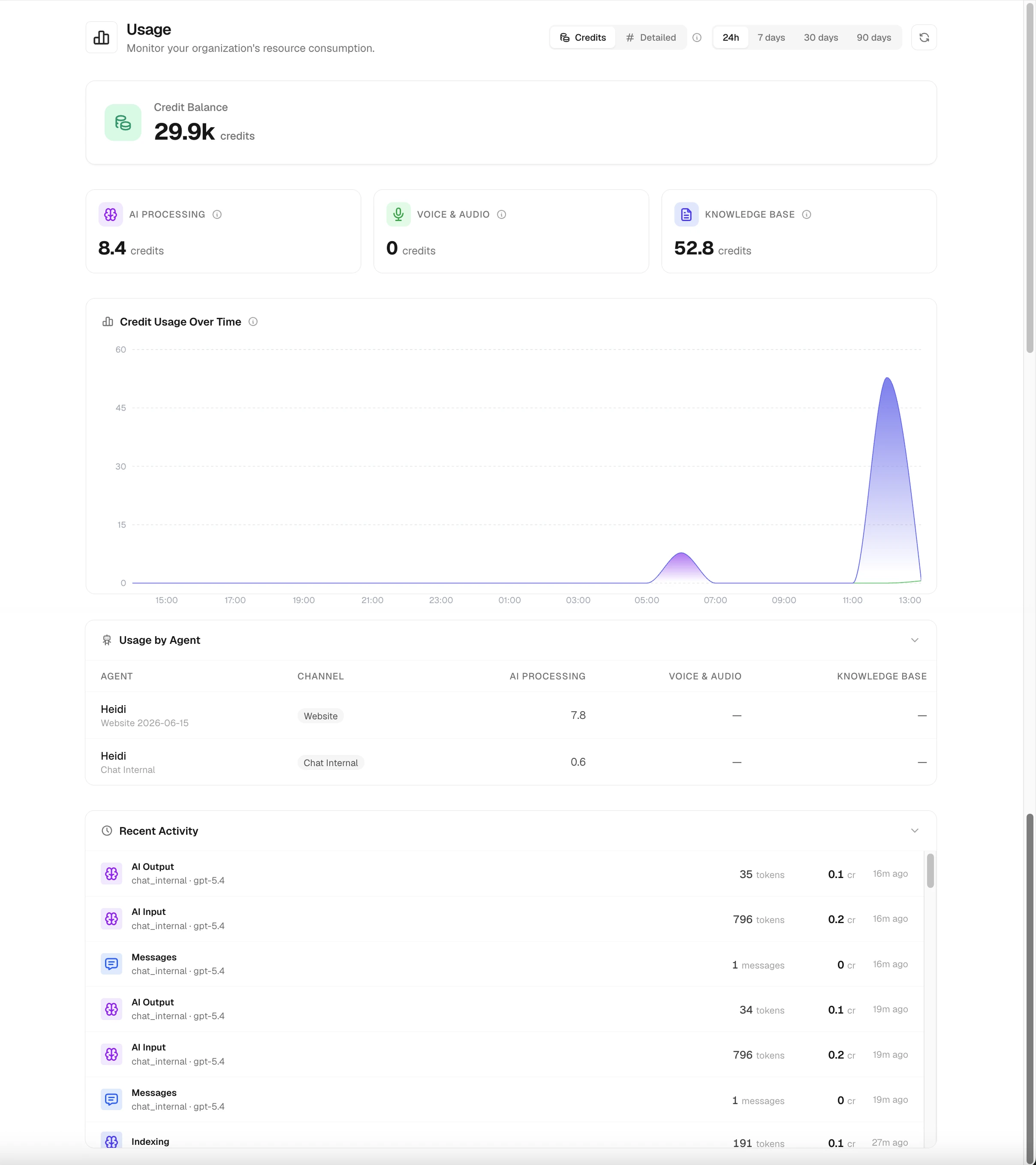
Usage
The My Organization → Usage page (owner/admin) shows how your credits are being spent:
- Credit Balance hero — your current balance, shown red when you're out of credits, amber when low (under 100), and green otherwise.
- Summary cards — high-level usage totals.
- Usage chart — a timeseries over a period you select (1–365 days), viewable as credits or tokens.
- Per-agent table — usage broken down by agent, channel, and category.
- Recent activity — individual usage events with event type, quantity, credits deducted, and time.
Builders can see the summary balance and limits (the same data behind the limit notices on build pages), but the detailed timeseries, events, and per-agent breakdowns are owner/admin only.
Data residency and privacy
You control where your AI processing happens with the Server Location setting on My Organization → General (owner/admin only). It restricts which AI models your organization can use, based on where a model is hosted and which company operates it.
There are five tiers, from strictest to most permissive:
| Tier | Meaning |
|---|---|
| Swiss server by Swiss company | Hosted in Switzerland and operated by a Swiss company |
| Swiss server by any company | Hosted in Switzerland, any operator |
| European server by European company | Hosted and operated in Europe (Switzerland counts as European, though it is not in the EU) |
| European server by any company | Hosted in Europe, any operator |
| No restriction (global) | Any model |
How it's applied:
- Default is No restriction (global). Any missing or invalid value safely resolves to global, and an invalid value is rejected before it can be saved — so it can never silently loosen.
- The setting filters the model list, rejects non-compliant models when you try to select one, and flags existing deployments whose model no longer complies after you tighten the tier.
- A model whose hosting or provider country is unknown never satisfies a restrictive tier.
Note
This setting governs AI model selection. Independently of it, botts.ai's platform infrastructure, chat storage, and knowledge-base storage are in Switzerland — but the telephony provider used for voice deployments is US-based. botts.ai does not train models on your data.
Privacy commitments
- Swiss platform infrastructure — platform infrastructure, chat storage, and knowledge-base storage are hosted in Switzerland (voice telephony uses a US-based provider).
- No training on your data — botts.ai does not train AI models on your content.
- Encryption — data is encrypted in transit (TLS) and at rest.
- GDPR-aware — built with European data protection regulations in mind.
For details, see our Privacy Policy and Terms of Service.
Last updated on September 13, 2026